Create a quotation
The quotation builder walks you through four steps: Client, Items, Details and Review. A live preview shows exactly what your client will see.
Open the builder with New quote on the dashboard or the Quotations page, from the command palette, or by pressing Q anywhere you aren't typing. Quotation numbers are assigned automatically in sequence: QT-0001, QT-0002 and so on.
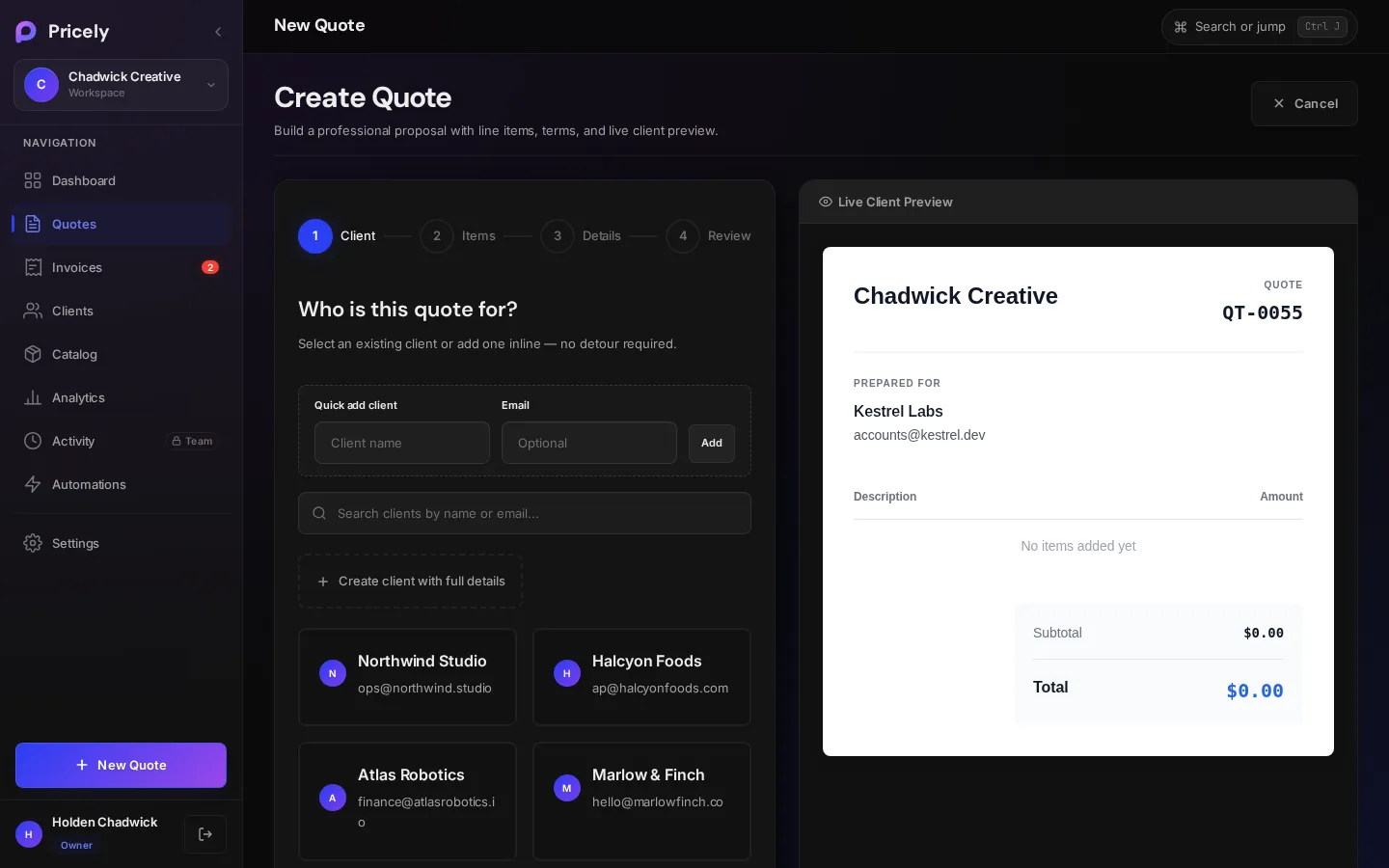
Step 1 · Client
Who is this quotation for? Search your clients by name or email and pick one. If they aren't on file yet, use Quick add client without leaving the builder. A name is required. Name and email are enough to send a quotation; you can add phone and address later from Clients.
Step 2 · Items
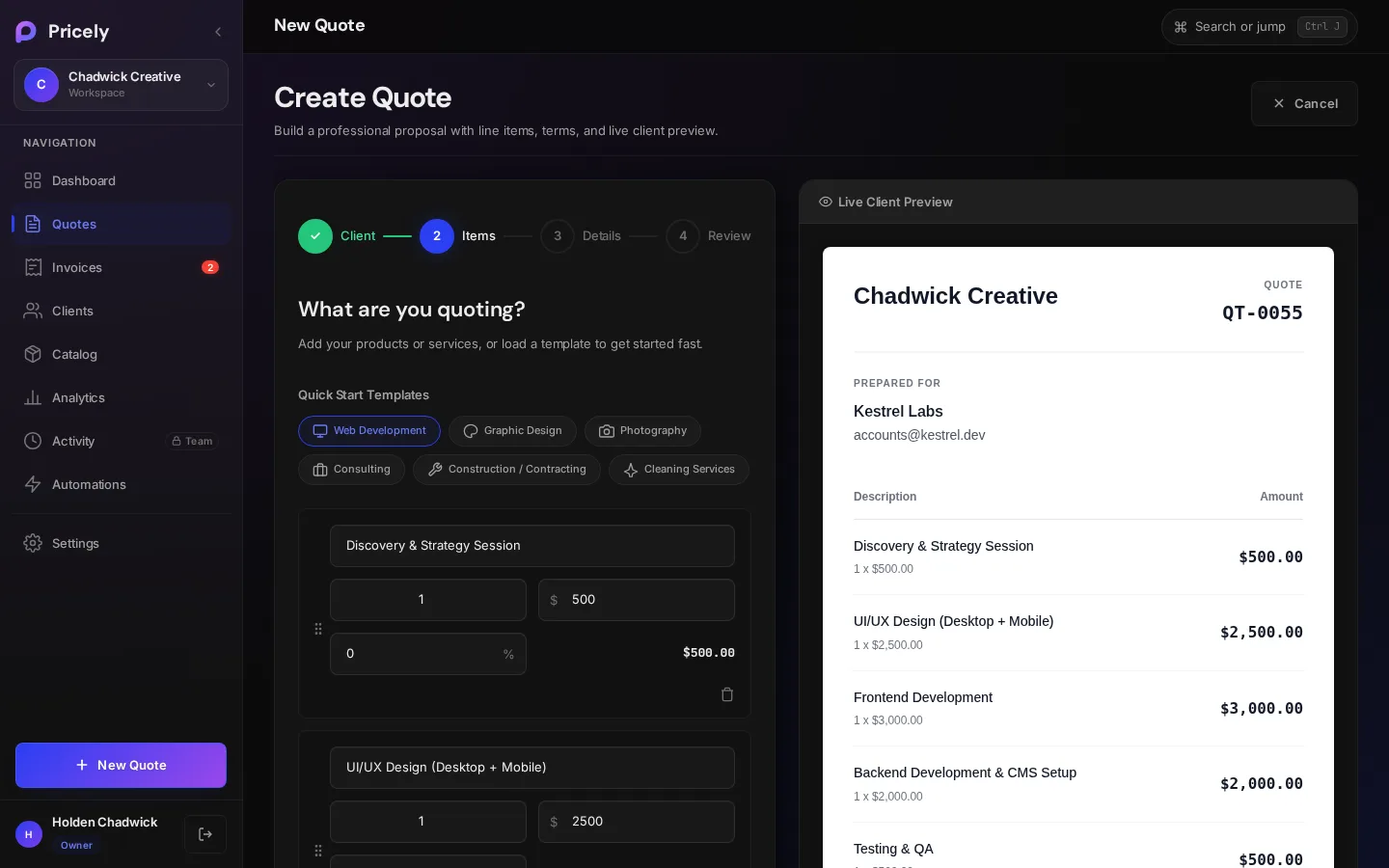
What are you quoting? Add one line per product or service. Each line has:
- Description
- What you're providing. Lines without a description are dropped when you save.
- Qty
- Hours, units, days or any count.
- Unit Price
- Price for one unit, in the quotation's currency.
- Discount %
- Optional discount on this line only.
- Total
- Calculated for you: quantity × unit price, less the line discount.
Drag the handle on a line to reorder it, or remove it with the trash icon.
Quick start templates
Templates fill in typical line items you can then edit. Pricely includes Web Development, Graphic Design, Photography, Consulting, Construction / Contracting and Cleaning Services. To reuse your own set of lines, choose Save as Template, give it a name, and it appears next to the built-in templates.
Add from the catalogue
On Pro you can choose From Catalog to insert saved products and services with their prices. See Product catalogue.
Step 3 · Details
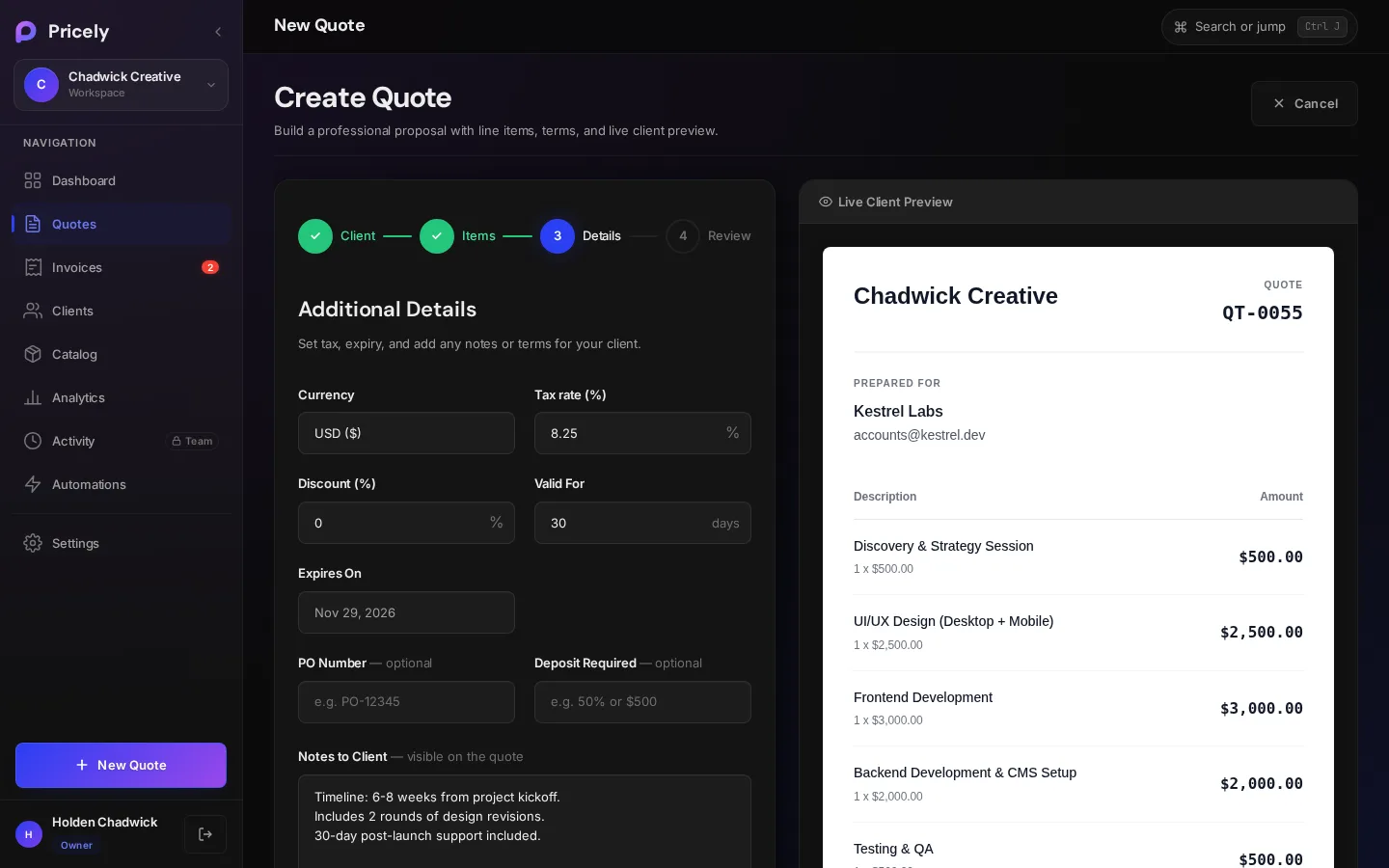
Additional details. Set tax, expiry and anything else your client should read.
- Currency
- The currency for this quotation. Defaults to your workspace currency.See supported currencies.
- Tax rate (%)
- Applied to the subtotal after discounts, leaving out tax-exempt catalogue items. Defaults to your Default Tax Rate in Quotation Defaults.
- Discount (%)
- A discount on the whole quotation, applied before tax.
- Valid For
- How many days the quotation stays open, from 1 to 365. The default is 30 days.The Expires On date updates as you type.
- PO Number
- Optional. Your client's purchase order reference.
- Deposit Required
- Optional free text such as 50% or $500. It is shown on the quotation as Deposit required.It doesn't bill anything on its own. When you convert the quotation to a deposit invoice, a percentage entered here (such as 40%) is pre-filled as the deposit. Otherwise the deposit starts at 50%.
- Notes to Client
- Visible on the quotation. Include timeline, deliverables, and what's included or excluded.
- Terms & Conditions
- Payment schedule, cancellation policy, warranty and similar terms.
Four quick presets fill the terms for you: 50/50 Split, Net 30, Due on Completion and 1/3 Milestones. You can edit the text afterwards. To start every quotation with the same notes and terms, set them in Settings›Quote Defaults.
How totals are calculated
| Line | Calculation |
|---|---|
| Line total | Quantity × unit price, less the line's discount % |
| Subtotal | Sum of all line totals |
| Discount | Quotation discount % × subtotal |
| Tax | Tax rate × (subtotal − discount), on taxable lines only |
| Total | Subtotal − discount + tax, rounded to the cent |
Step 4 · Review and send
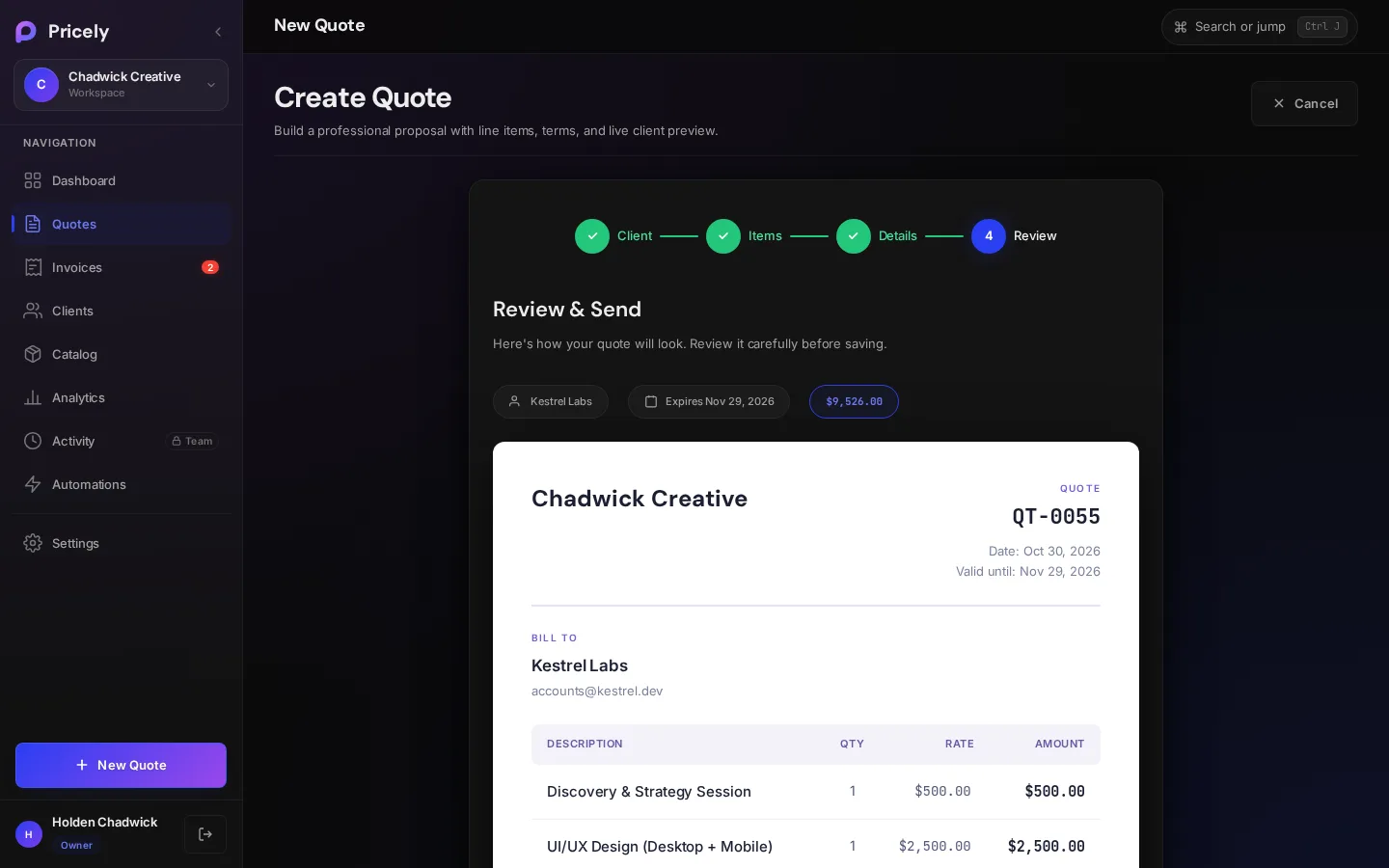
Here's how your quotation will look. Check the preview carefully, then choose one of:
| Button | What happens |
|---|---|
| Save as Draft | Saves the quotation as Draft. Nothing is sent. You can edit it later. |
| Save & Send | Saves the quotation and emails your client a secure link. The quotation becomes Sent. |
Drafts are saved as you work
The builder keeps an unsaved copy in your browser. If you close the tab, the next time you open the builder you'll see Unsaved Draft Detected with the option to restore it or discard it.
Quotation limits on Free
The Free plan includes 10 quotations per calendar month. The count resets on the 1st of every month. When you reach the limit, the builder offers an upgrade instead of a new quotation. Pro has no limit.
Edit, duplicate or delete
- Edit is available on draft and approved quotations. Editing a quotation that has already gone out raises its version, for example v2, so you can tell revisions apart.
- Duplicate creates a new draft with the same client and items, which is handy for repeat work.
- Delete is in the Quotations list. Select quotations and choose Delete. This can't be undone.