Automation
One page shows everything Pricely does for you in the background, what's switched on, and what runs next.
Open Automations in the sidebar, or choose Automation Center in Settings. Everyone in the workspace can view it; only owners and admins can change settings such as the webhook (see roles).
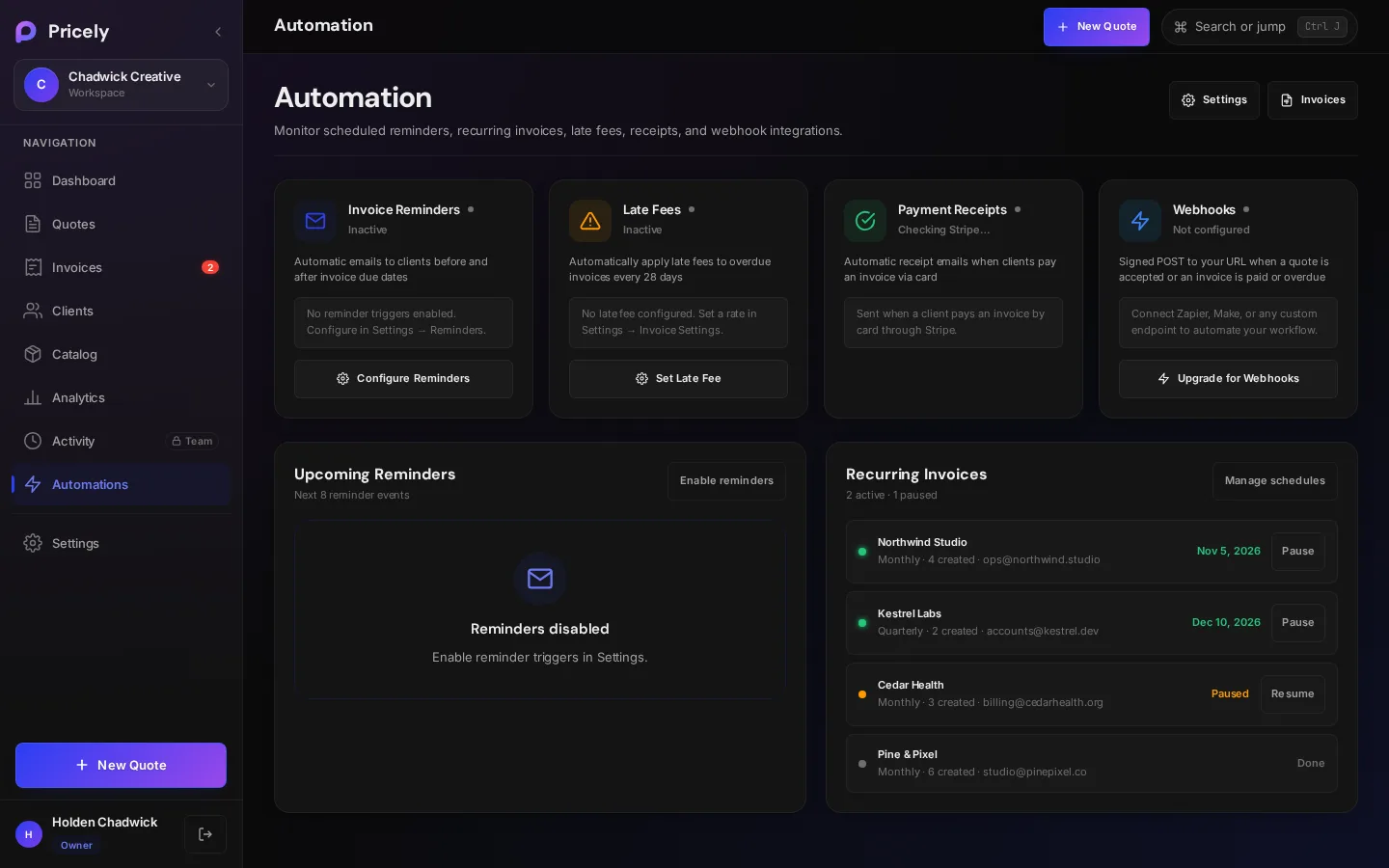
Status cards
| Card | What it does | When it runs | Set it up |
|---|---|---|---|
| Invoice Reminders | Emails clients before and after due dates | Daily, 09:00 UTC | Reminders |
| Late Fees | Adds a fee to overdue invoices, at most every 28 days | Daily, 07:00 UTC | Late fees |
| Payment Receipts | Emails a receipt when a client pays by card | When the payment completes | Stripe, Pro |
| Webhooks | POSTs signed events to your URL | When the event happens; overdue at 07:00 UTC | Webhooks, Business |
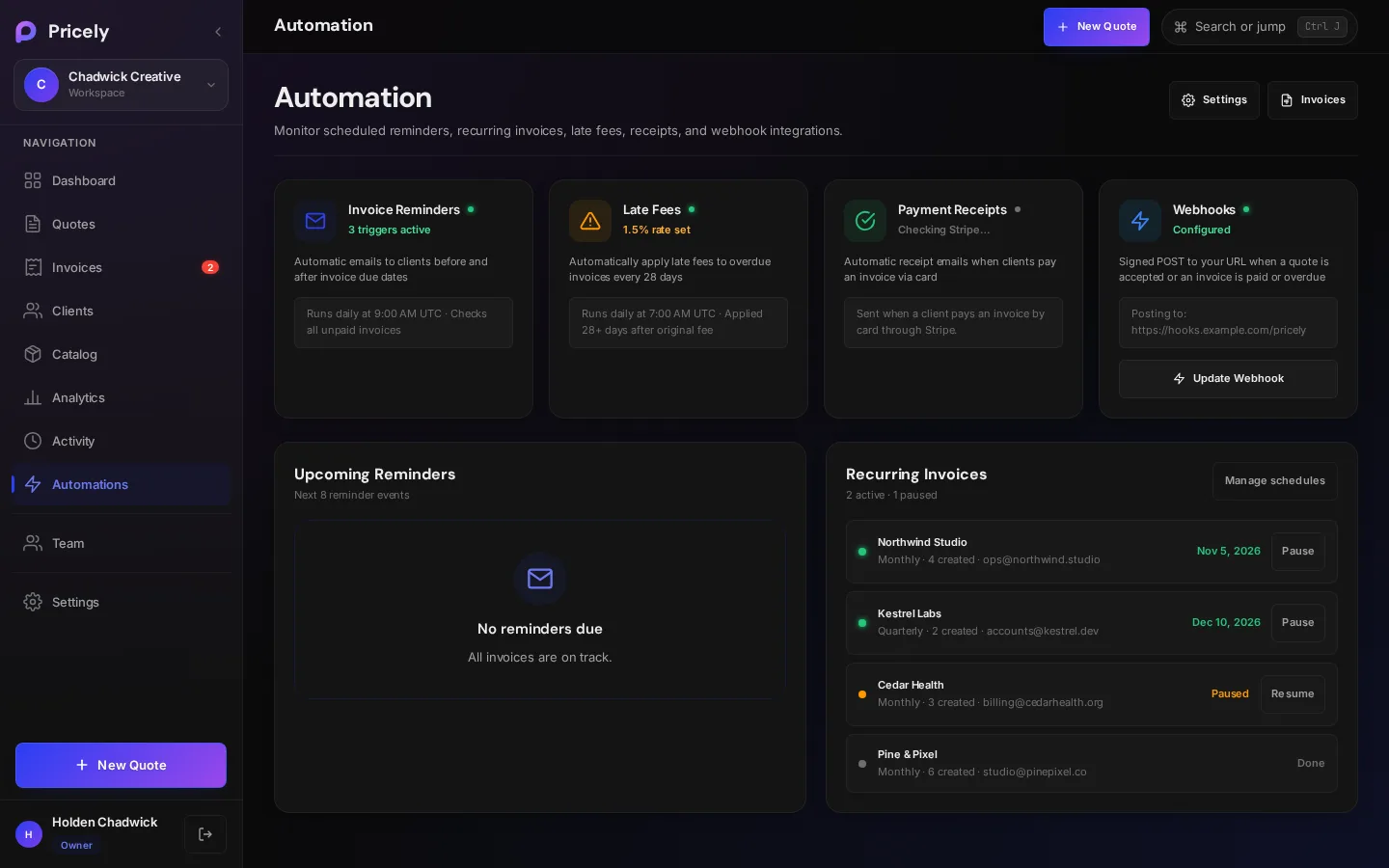
Each card shows whether it's active, such as 2 triggers active or Not configured, with a shortcut to the right setting.
Upcoming Reminders
Lists the next eight reminder emails Pricely will send, with the invoice, client and date, based on the reminders you've switched on. If none are on, you'll see Enable reminders.
| Time (UTC) | What runs |
|---|---|
| 07:00 | Late fees, overdue checks (the Invoice Overdue email and the invoice.overdue webhook), and on Mondays the Weekly Summary email |
| 08:00 | Recurring invoices |
| 09:00 | Reminder emails to clients |
Recurring Invoices
Shows your recurring schedules with the client, how often each repeats, how many invoices it has created so far, and its next run, Paused, or Done once it has finished. Owners and Admins can Pause or Resume each one; see Pause and resume. With no schedules you'll see No recurring invoices: open an invoice and choose Make Recurring to start one.
If something didn't run
| What you expected | Check |
|---|---|
| A reminder email | The invoice has been sent, isn't paid, and the client has an email address. Reminders only go to sent invoices. See Reminders and late fees. |
| A late fee | Late fees are switched on and the invoice is overdue. A fee is added at most every 28 days. |
| A recurring invoice | The schedule isn't paused, its next run date has arrived, and it hasn't reached its end date or count. New invoices are created as drafts and aren't emailed. |
| A notification email to you | The switch is on in Settings › Notifications. Overdue emails and the weekly summary go out at 07:00 UTC; the summary is skipped for a week with no activity. |
| A receipt | Receipts go out for card payments through Stripe once the invoice is paid in full, not for payments you record yourself. |
| A webhook | The endpoint is saved and answers with a 2xx. The dialog shows the last delivery and its status. See webhook troubleshooting. |