Reminders and late fees
Let Pricely do the chasing. Reminder emails go out on the days you choose, and an optional late fee is added to invoices that stay unpaid.
Automatic reminders
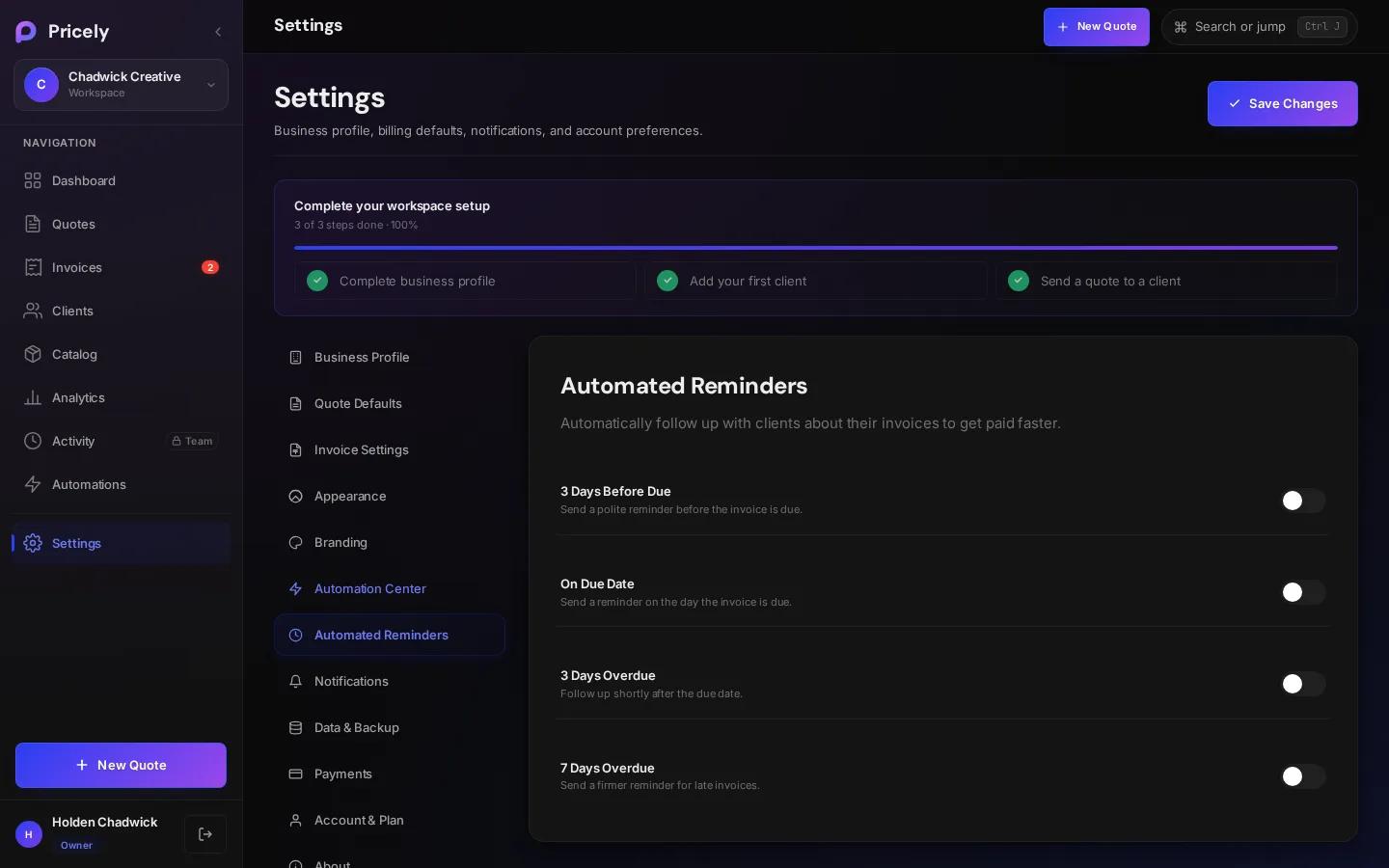
Turn on any combination in Settings›Automated Reminders:
| Reminder | Sent | Email subject |
|---|---|---|
| 3 Days Before Due | Three days before the due date | Reminder: Invoice INV-0042 due in 3 days |
| On Due Date | On the due date | Invoice INV-0042 is due today |
| 3 Days Overdue | Three days after the due date | Invoice INV-0042 is 3 days overdue |
| 7 Days Overdue | Seven days after the due date | Invoice INV-0042 is 7 days overdue — action required |
Which invoices get reminders
- Invoices that are Sent, Partial or overdue. Drafts, paid and void invoices are skipped.
- The invoice must have a client email and a due date.
- Reminders are sent once a day at 09:00 UTC. Each email shows the balance in the invoice's own currency and a View & Pay Invoice button, and asks the client to use the invoice number as the payment reference.
Send a reminder now
To nudge a client by hand, use the envelope icon on an invoice that has already been sent. Pricely emails a payment reminder straight away.
Late fees
Set a late fee in Settings›Invoice Settings under Late Payment Fee:
| Type | Fee added |
|---|---|
| % per month | That percentage of the current balance |
| Flat fee | A fixed amount |
- The fee is added to sent and partially paid invoices once they are past their due date.
- It's applied at most once every 28 days per invoice, by a daily check at 07:00 UTC.
- The fee is added to the invoice total and balance due, in the invoice's currency.
See what's coming
Automation shows which reminders are on, upcoming reminders, the late fee setting and recurring schedules.
Was this page helpful? Something missing or unclear? Tell us and we will fix the page.Email support@pricely.me