Product catalog
Save the things you sell once, with their price and unit, and add them to quotes without retyping.
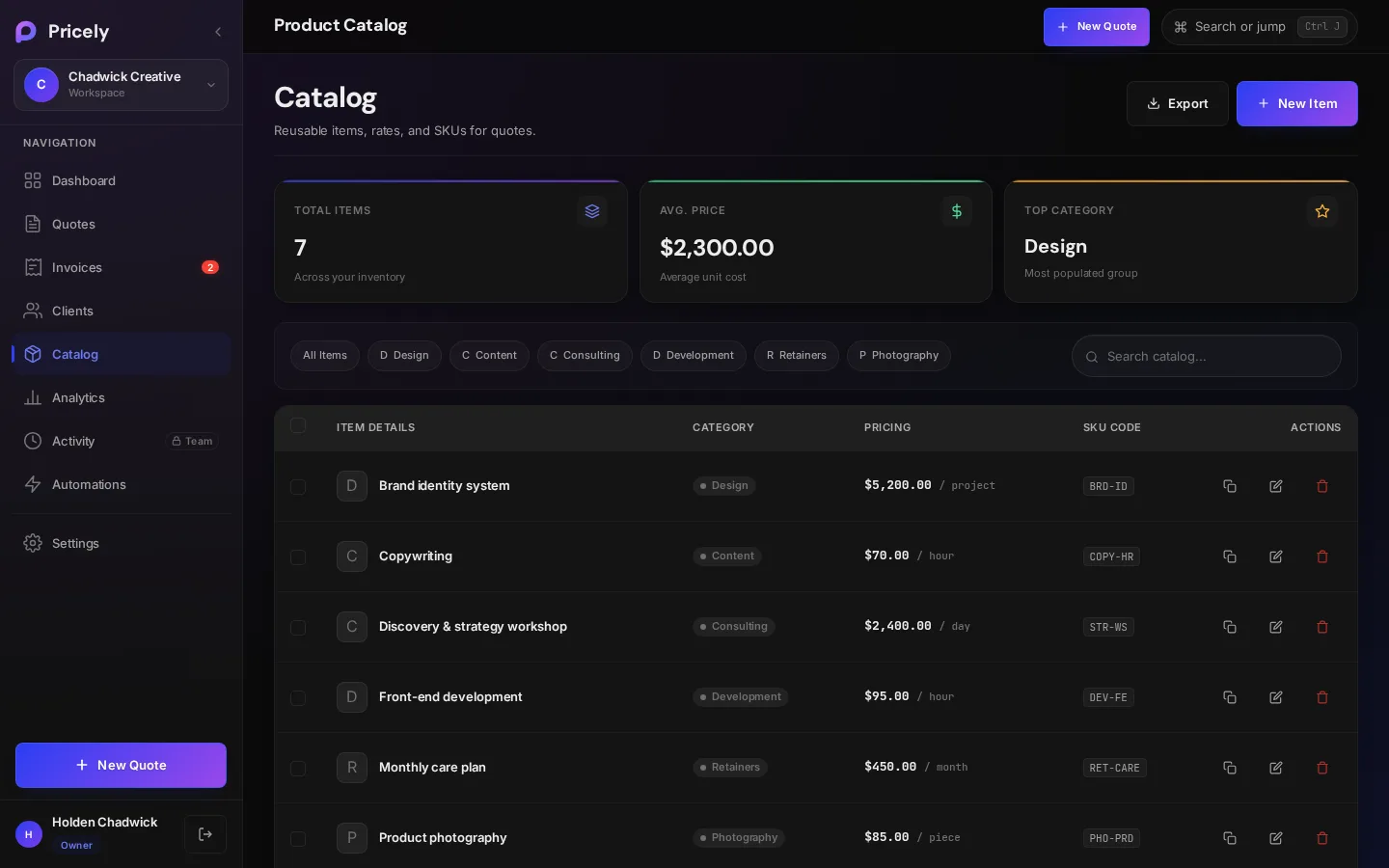
The catalog is your price list inside Pricely. Save each product or service once, with its price, unit and tax treatment, and add it to any quote in a couple of clicks. Your prices stay consistent across quotes, and nobody on your team has to look them up.
Add an item
Open Catalog in the sidebar and choose New Item. On an empty catalog, the button reads Add Catalog Item.
- Item Name Required
- What appears on the quote line.
- Description
- Optional detail. It's added to the line after the name, for example Website Design — Core Package.
- Unit Price Required
- Price for one unit. Must be more than zero.
- Unit Type
- per unit, hour, day, week, month, project, sqft, piece, kg or lb.
- Category
- Pick an existing category or type a new one to group items.
- SKU / Code
- Your own reference, for example
SRV-001. - Tax Exempt
- Tick for items that aren't subject to sales tax. See Tax-exempt items.
Click Add to Catalog and Pricely confirms with … added to catalog.
Use items in a quote
- Open the line items step
In step 2 of the quote builder, choose From Catalog. The Add from Catalog window opens.
- Pick items
Search by name, description or SKU, and tick every item you want.
- Add them
Each item becomes a line with a quantity of 1 and its saved unit price. Change the quantity, price or discount on that quote as needed.
Lines keep a link to the catalog item and its unit, and they carry over unchanged when the quote is converted to an invoice.
Tax-exempt items
Tax on a quote is one rate for the whole document, set in the builder's Details step. Lines added from a catalog item marked Tax Exempt are left out of the amount that rate applies to:
- In the builder, the line shows a No tax tag next to its total.
- Tax is worked out on the taxable lines only. If the quote has an overall discount, it's shared between taxable and exempt lines in proportion to their value before tax is added.
- The exemption carries over to the invoice, to edited invoices and to recurring invoices, so the tax stays the same everywhere.
| Example | Amount |
|---|---|
| Design work (taxable) | $1,000.00 |
| Hosting, tax exempt | $200.00 |
| Subtotal | $1,200.00 |
| Tax at 10%, on the $1,000.00 taxable part | $100.00 |
| Total | $1,300.00 |
Find, edit and organize
- Summary cards. Total Items, Avg. Price and Top Category sit at the top of the page.
- Search and filter. Search with Search catalog… by name, description or SKU, and filter by category, or show All Items.
- Edit, duplicate or delete. Each item has buttons to edit it, duplicate it (the copy is named … (Copy)) or delete it.
Changes and deletions never touch quotes or invoices you've already created, since those keep their own copy of each line. Adding, updating and deleting items is recorded in the activity log.
Tips for a tidy catalog
- Use categories that match how you quote, such as Design, Development and Hosting, so items are quick to find.
- Give packages a clear name and put the detail in the description, since both appear on the quote line.
- Use SKUs if you also track items in another system, so lines are easy to match up.
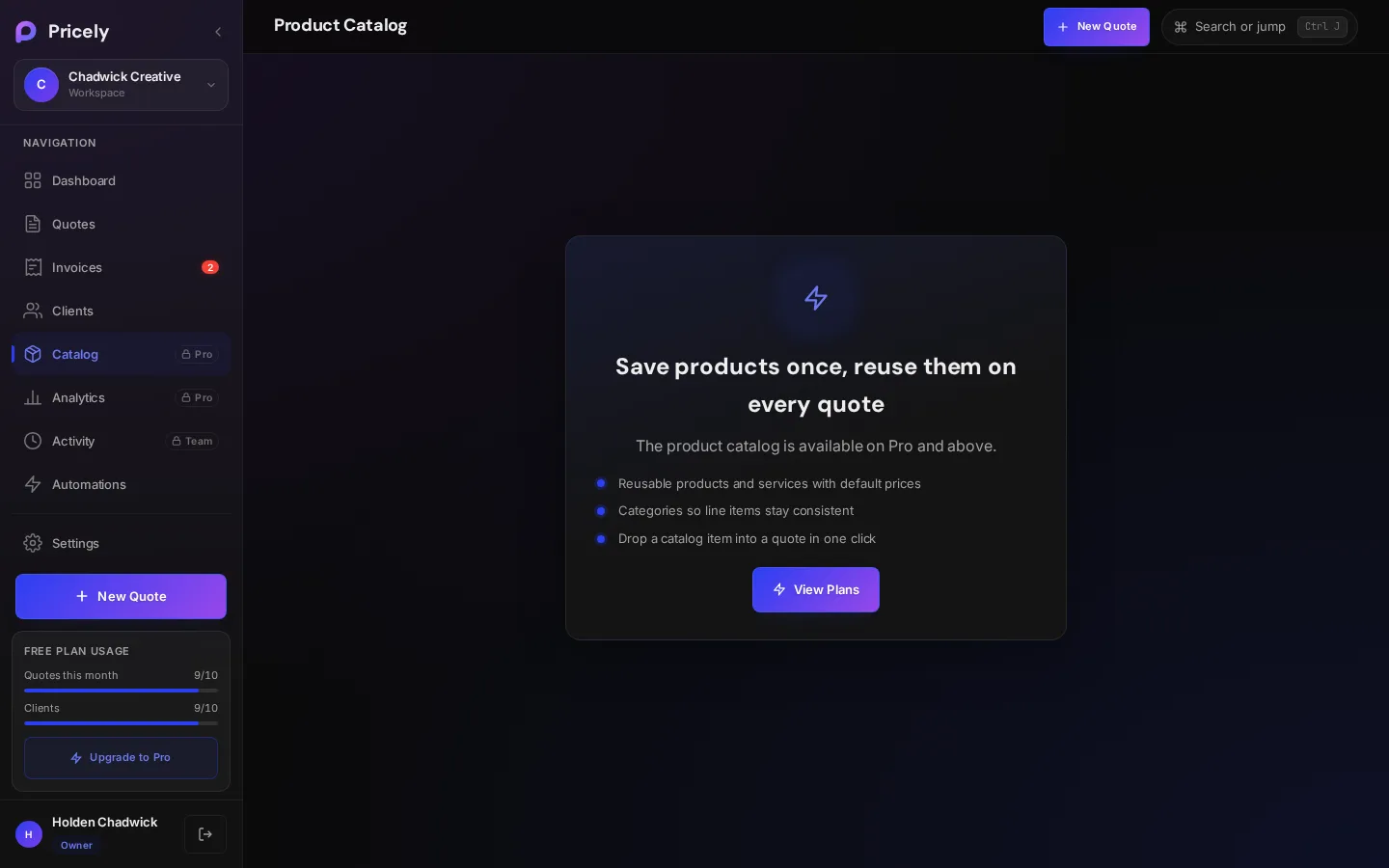
On the Free plan
The catalog is a Pro feature. On Free, the page explains what the catalog does and links to the plans.