Recurring invoices
For retainers and repeat work, set a schedule once. Pricely creates the next invoice on time, every time.
A recurring schedule copies an existing invoice on a fixed cycle. Use it for retainers, maintenance plans and any work you bill the same way each period.
Create a schedule
- Open the invoice to repeat
Open its details from Invoices. Its line items, tax rate, discount, notes, terms, currency, payment terms and client email become the template for every future invoice.
- Choose Make Recurring
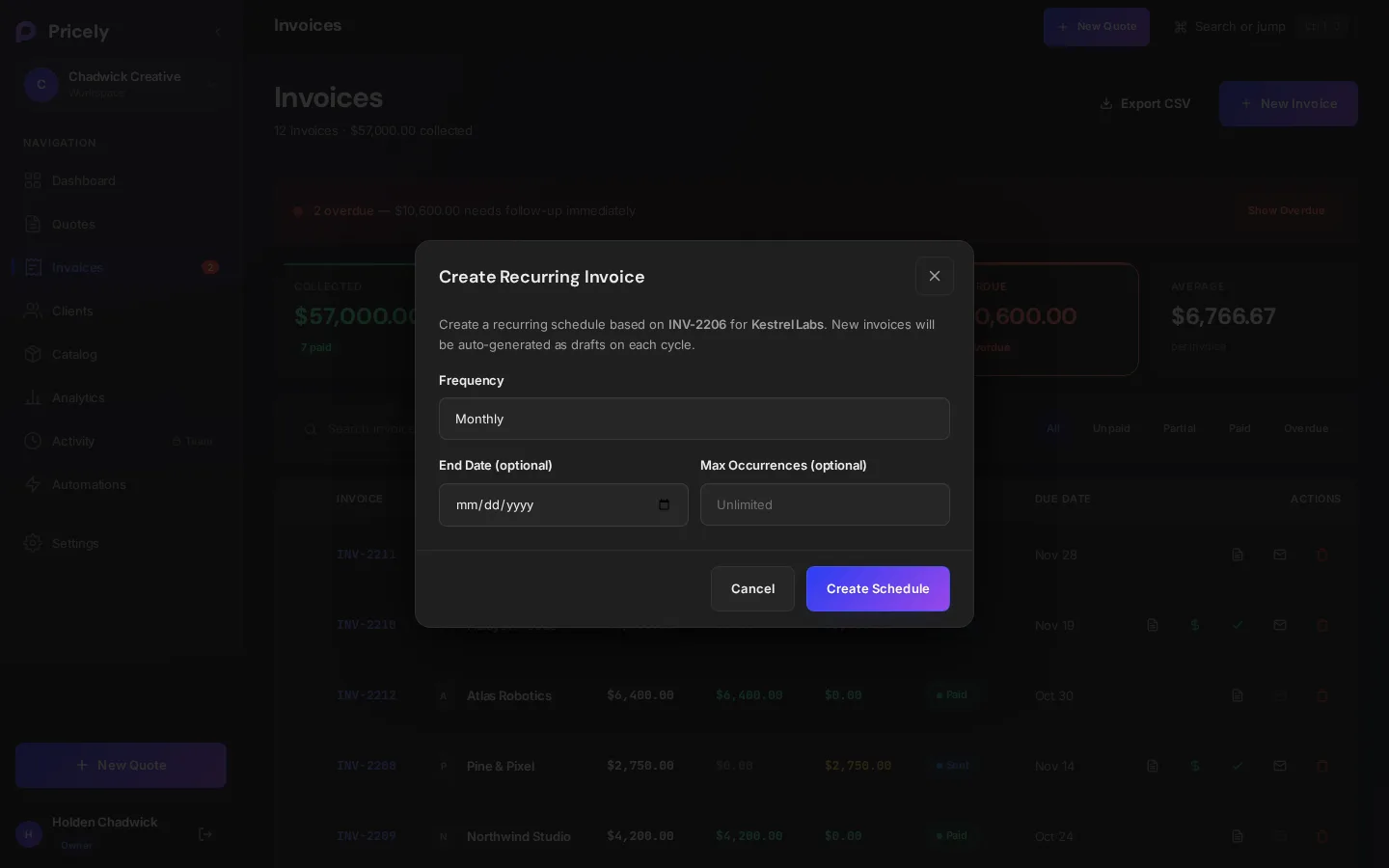
This opens Create Recurring Invoice, naming the invoice and client it's based on.
- Set the frequency
Weekly, Bi-weekly, Monthly (the default), Quarterly, Semi-annual or Annual.
- Set an end, if any
Optionally pick an End Date, a Max Occurrences count, or both. Leave them empty to keep billing until you stop.
- Choose Create Schedule
You'll see Recurring monthly schedule created for the client. The schedule is active straight away.
How invoices are generated
- The invoice you started from counts as the current period. The first new invoice is created one period later, for example a month later on a monthly schedule.
- Pricely checks schedules once a day at 08:00 UTC, so an invoice can appear up to a day after its date.
- Each new invoice gets the next number in your invoice sequence, using your invoice prefix.
- New invoices are created as Draft. Nothing is emailed automatically; send each one after a quick check.
| Copied from your invoice | How it's used |
|---|---|
| Line items and tax rate | Every new invoice has the same lines, including line discounts and tax-exempt items, taxed at the same rate. |
| Invoice discount | The same percentage or fixed discount is applied to each new invoice before tax. |
| Payment terms | The due date follows the original invoice's terms. An invoice issued on the 1st and due on the 15th makes every new invoice due 14 days after it's created. If the terms can't be worked out, your Default Payment Terms are used, then Net 30. |
| Currency | Every new invoice is in the same currency as the original. |
| Client and email | The client and the email address on the original invoice. If that was blank, the email on the client's record is used, so the draft is ready to send. |
| Notes and terms | Shown on every new invoice. |
Month-end dates
Monthly, quarterly, semi-annual and annual schedules keep the same day of the month. When that day doesn't exist, Pricely uses the last day of the month. A schedule started on January 31 runs on February 28 (or 29), then continues from there.
When a schedule ends
A schedule becomes Completed once it passes its end date or has created its maximum number of invoices. If you set both, whichever comes first ends it.
| Frequency | Next invoice |
|---|---|
| Weekly | 7 days later |
| Bi-weekly | 14 days later |
| Monthly | Same day next month |
| Quarterly | Same day, three months later |
| Semi-annual | Same day, six months later |
| Annual | Same day next year |
See your schedules
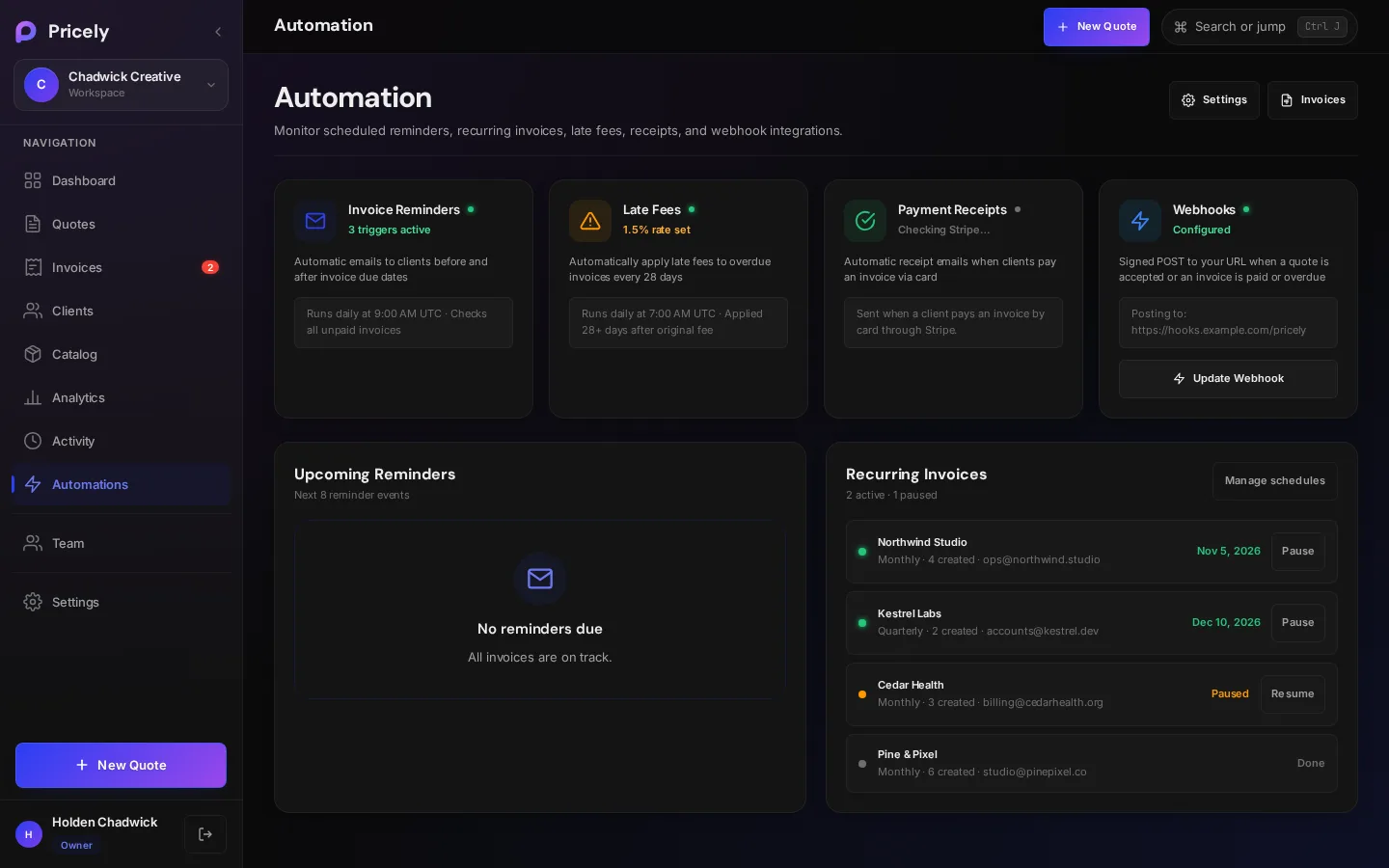
The Recurring Invoices panel in Automation lists each schedule with its client, frequency and how many invoices it has created. A colored dot and the right-hand column show its state: the next run date, Paused, or Done for completed schedules. The panel header counts them, for example 3 active · 1 paused.
Pause and resume
Taking a break from a retainer, or waiting on a client? Pause the schedule instead of deleting it.
- Open Automation
Go to Automation and find the schedule under Recurring Invoices.
- Pause
Click Pause. Pricely confirms Paused. No invoices are created until you resume.
- Resume when you're ready
Click Resume. Pricely confirms with the next date, for example Resumed. Next invoice May 1, 2026.
- Missed periods aren't billed. Resuming picks up at the next date on the original cycle after today. Pricely doesn't create a pile of invoices for the time the schedule was paused.
- Paused schedules keep their settings, invoice count and end conditions. If the end date passes while a schedule is paused, it finishes the first time Pricely checks it after you resume.
- Pausing and resuming are recorded in the activity log.
- Owners and Admins can pause and resume. Completed schedules can't be resumed; create a new one instead.
Good to know
- Check each draft before sending. Confirm the line items, amount and due date are right for this period.
- Changing the amount. A schedule keeps the lines it was created with. For a one-off change, edit the draft before you send it. To bill a new amount from now on, pause the old schedule and choose Make Recurring on a sent invoice with the new amount.
- Deleting a client cancels their active recurring schedules.
- In the Activity log, creating a schedule is recorded with its frequency and client.
Troubleshooting
| Problem | What to check |
|---|---|
| No invoice appeared on the expected day | Schedules run once a day at 08:00 UTC. Look again after the next run, and check the schedule isn't Paused or Done in Automation. |
| The schedule stopped early | It reached its End Date or Max Occurrences, or the client was deleted. |
| The draft has no client email | Neither the original invoice nor the client record had an email. Add one to the client, then edit or resend the draft. |
| The due date isn't what you expected | New invoices use the original invoice's payment terms. Change the due date on the draft before sending. |
| You resumed and only one invoice appeared | Expected. Periods while the schedule was paused are skipped, not billed. |
Plans
Recurring invoices need Pro or higher. On Free, Make Recurring shows a lock badge, and choosing it explains the feature and links to plans.