Accept card payments with Stripe
Connect Stripe and every invoice gets a Pay with Card button. The money goes straight to your Stripe account, and Pricely marks the invoice paid.
Card payments use Stripe Connect. Your clients pay on Stripe's hosted checkout, the charge is made on your Stripe account, and Pricely updates the invoice as soon as Stripe confirms the payment.
Before you start
- A Pro plan or higher.
- A few minutes for Stripe's onboarding. Stripe asks for your business details and the bank account it should pay out to.
- In a team workspace, card payments go to the Stripe account connected by the workspace owner.
Connect your account
- Open Payments settings
Go to Settings›Payments.
- Choose Connect Stripe Account
Pricely creates a Stripe account for you and opens Stripe's onboarding.
- Finish Stripe's onboarding
Stripe asks for your business and bank details so it can pay you out. Those details stay with Stripe; Pricely never sees or stores them.
- Return to Pricely
Stripe sends you back to the Payments section. If everything is in place you'll see Stripe account connected! Clients can now pay invoices online.
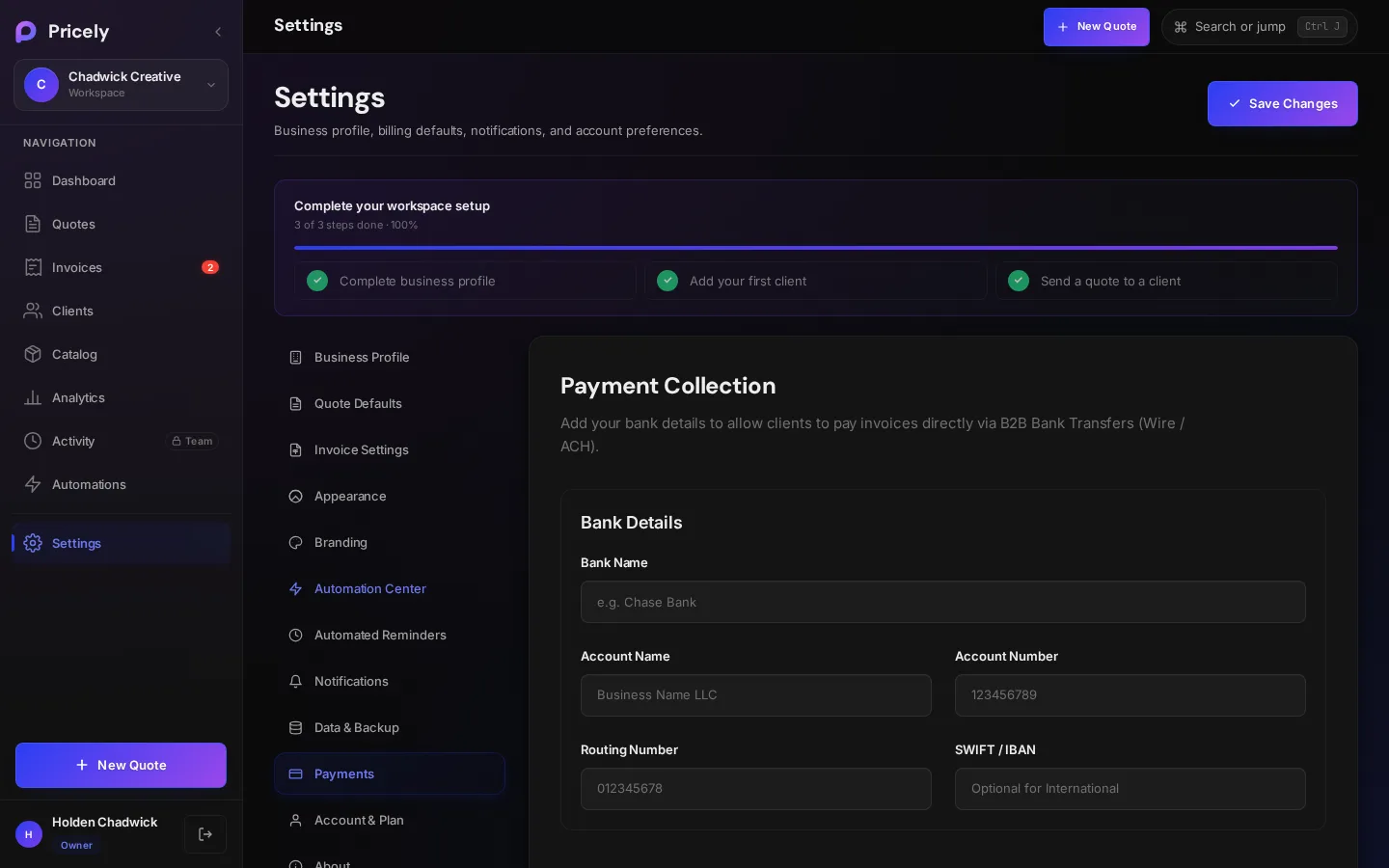
Connection states
The Payments section always shows where your account stands:
| You see | Meaning | What to do |
|---|---|---|
| Not connected | Clients can only pay by bank transfer. | Choose Connect Stripe Account. |
| Setup not finished | Stripe setup was started, but no details were submitted. Clients can't pay by card yet. | Choose Continue Stripe setup. |
| Stripe is reviewing | Your details are in. Card payments turn on when Stripe enables charges. | Wait for Stripe, or choose Continue Stripe setup if Stripe asks for more. |
| Stripe Connected | Clients see a Pay button on invoice links. | Manage Stripe Account opens your Stripe dashboard. |
What your client sees
When a client opens an unpaid invoice link, the payment section shows a button with the exact balance, for example Pay $1,250.00 with Card. If you also show bank details, they appear below it under or pay via bank transfer.
- The client chooses Pay with Card
The button reads Redirecting to checkout… while Pricely prepares a Stripe Checkout session.
- They pay on Stripe
Checkout shows Invoice INV-0042 and Payment to your company name. The amount is the invoice's balance due, in the invoice's currency.
- They return to the invoice
The invoice shows Payment Confirmed and Thank you — your payment has been received. If Stripe is still confirming, it shows Confirming your payment… and updates by itself within a few seconds.
- They get a receipt
Once the invoice is paid in full, Pricely emails the client a Payment Received receipt with the amount, invoice number and date, sent from your company name.
Clients don't need a Stripe or Pricely account. If they cancel on the checkout page, they return to the invoice and nothing is charged.
What happens in Pricely
- The payment is added to the invoice's Payment History with the method Stripe and a note with the Checkout reference.
- The balance drops by the amount paid. At zero the invoice becomes Paid and gets a paid date; otherwise it's Partial.
- Each Stripe checkout is recorded once, even if the confirmation arrives twice, so a payment never counts double.
- A fully paid invoice sends an
invoice.paidevent to your webhook, if you've set one up.
Fees, payouts and refunds
The charge is made directly on your Stripe account, so Stripe's processing fees apply and are taken by Stripe from that account. Pricely doesn't add its own fee on card payments. Payouts follow your Stripe payout schedule.
Manage refunds, disputes and payouts in your Stripe dashboard. A refund in Stripe doesn't change the invoice in Pricely; issue a credit note too, so your balances match.
Troubleshooting
| Your client sees | Why | Fix |
|---|---|---|
| No card button on the invoice | Stripe isn't connected, or Stripe hasn't enabled charges yet. | Check Settings›Payments. It should read Stripe Connected. |
| This business has not connected a Stripe account yet. | There's no Stripe account on the workspace. | Connect Stripe, then ask the client to reopen the link. |
| This business has not finished Stripe setup. | Onboarding is incomplete or under review. | Choose Continue Stripe setup and finish what Stripe asks for. |
| This invoice has already been paid in full. | The balance is already zero. | Nothing to do. If that's wrong, check the invoice's Payment History. |
| Unable to start payment. Please try again. | Checkout couldn't be created, often a brief network problem. | Ask the client to try again in a moment. If it keeps happening, email support@pricely.me. |
Plans
Card payments need Pro or higher. On Free, the Payments section shows Upgrade to Enable Stripe. You can still add free-text payment instructions in Settings›Invoice Settings on any plan.