Invoices
Everything you've billed, in one list. See what's collected, what's outstanding and what's overdue, and act on any invoice in a click.
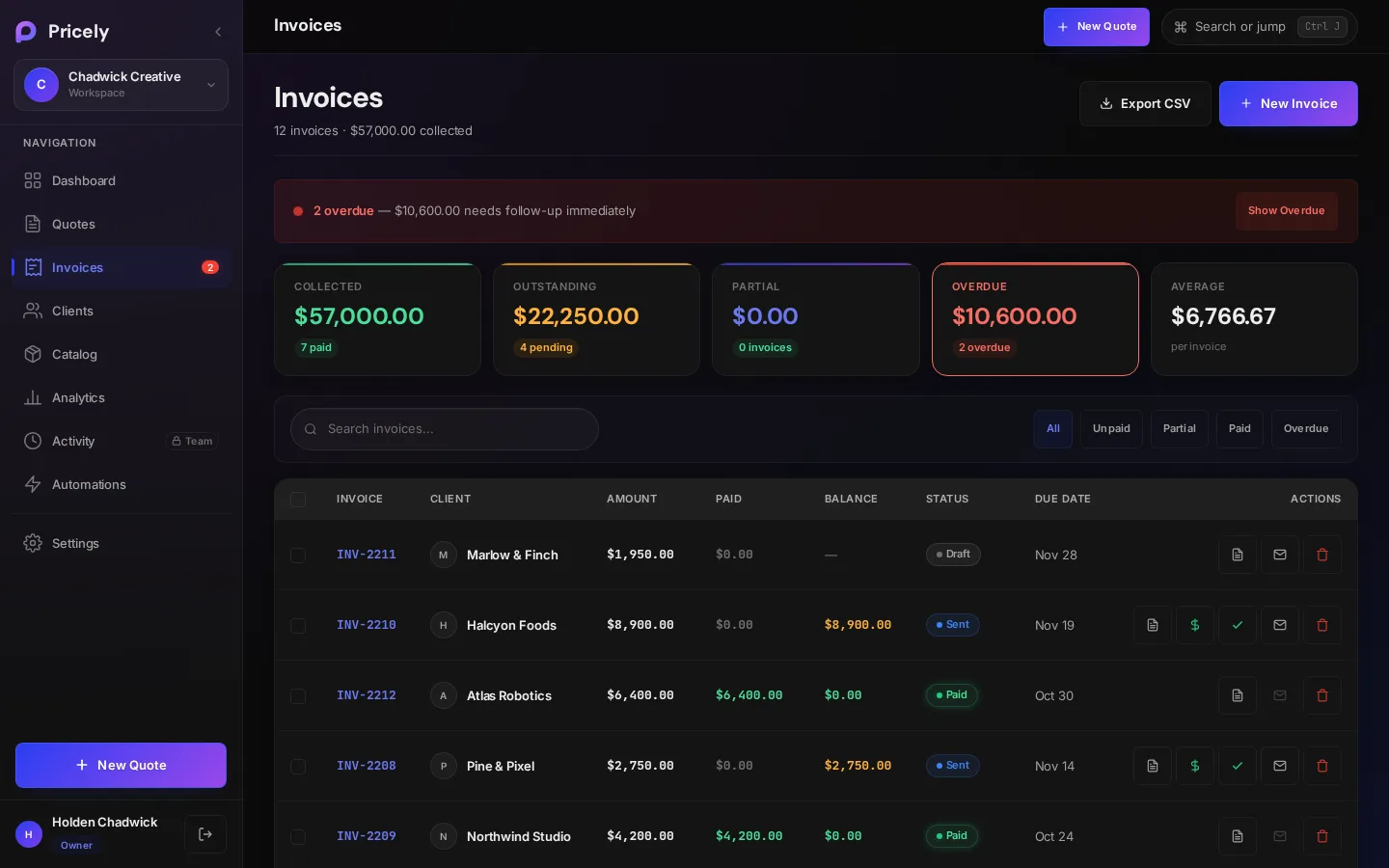
The Invoices list
- Four numbers at the top: Collected, Outstanding, Partial and Average invoice value.
- When anything is overdue, a banner shows the count and total, with Show Overdue to filter to those invoices.
- Filter by All, Unpaid, Partial, Paid or Overdue, or use Search invoices… to match number, client or amount.
- Columns: Invoice Number, Client, Date, Due Date, Status, Total, Amount Paid and Balance Due.
Row actions let you record a payment, mark the invoice fully paid, email it, or delete it without opening it.
Invoice statuses
| Status | Meaning |
|---|---|
| Draft | Created but not sent. Drafts don't count as owed and are never overdue. |
| Sent | Emailed to the client and waiting for payment. |
| Partial | Some of the balance has been paid. |
| Paid | Fully paid. The balance is zero. |
| Overdue | Sent, still owed, and past its due date. Shown automatically; no action needed. |
| Void | Cancelled. The amounts are set to zero and the record is kept. |
Create a quick invoice
Choose New Invoice (or press I) for work that didn't start as a quote. Create Quick Invoice asks for:
- Client Name Required
- Who you're billing.
- Client Email
- Needed to email the invoice.
- Description Required
- What this invoice is for.
- Amount Required
- The total to bill.
- Due Date
- Payment terms from Due on Receipt to Net 90. Net 30 is the default.
- Notes
- Optional notes shown on the invoice.
The invoice is saved as a Draft. It stays a draft until you email it to the client.
Open an invoice
Click any invoice to see its details: client, dates, line items, payment progress, payment history and the source quote, if any.
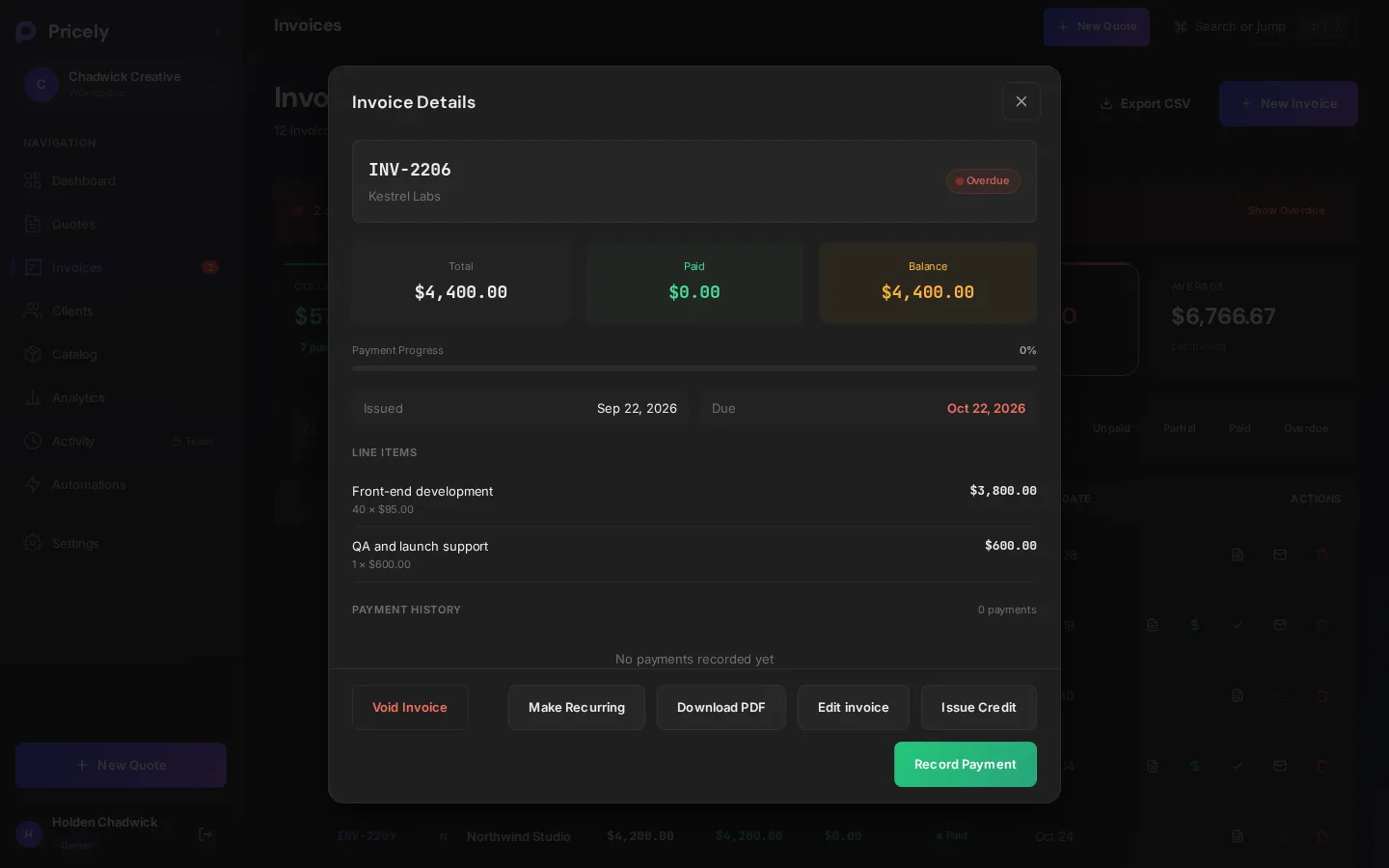
| Action | What it does | Available when |
|---|---|---|
| Send invoice | Emails the invoice link to the client and marks it Sent. | Draft |
| Delete draft | Deletes the draft permanently. | Draft |
| Edit invoice | Changes the lines, tax, discount, due date and notes. See Edit an invoice. | No payments or credit notes yet |
| Record Payment | Logs a payment you received. See Record a payment. | Sent, partial or overdue |
| Issue Credit | Reduces the balance with a credit note. See Credit notes. | Sent, partial or overdue |
| Download PDF | Saves a PDF copy. | Always |
| Make Recurring | Bills the same invoice on a schedule. See Recurring invoices. | Sent invoices, Pro |
| Void Invoice | Cancels the invoice. See Void an invoice. | Not paid or void |
Edit an invoice
Spotted a wrong price or a missing line? You can edit an invoice until money has been recorded against it, including after you've sent it.
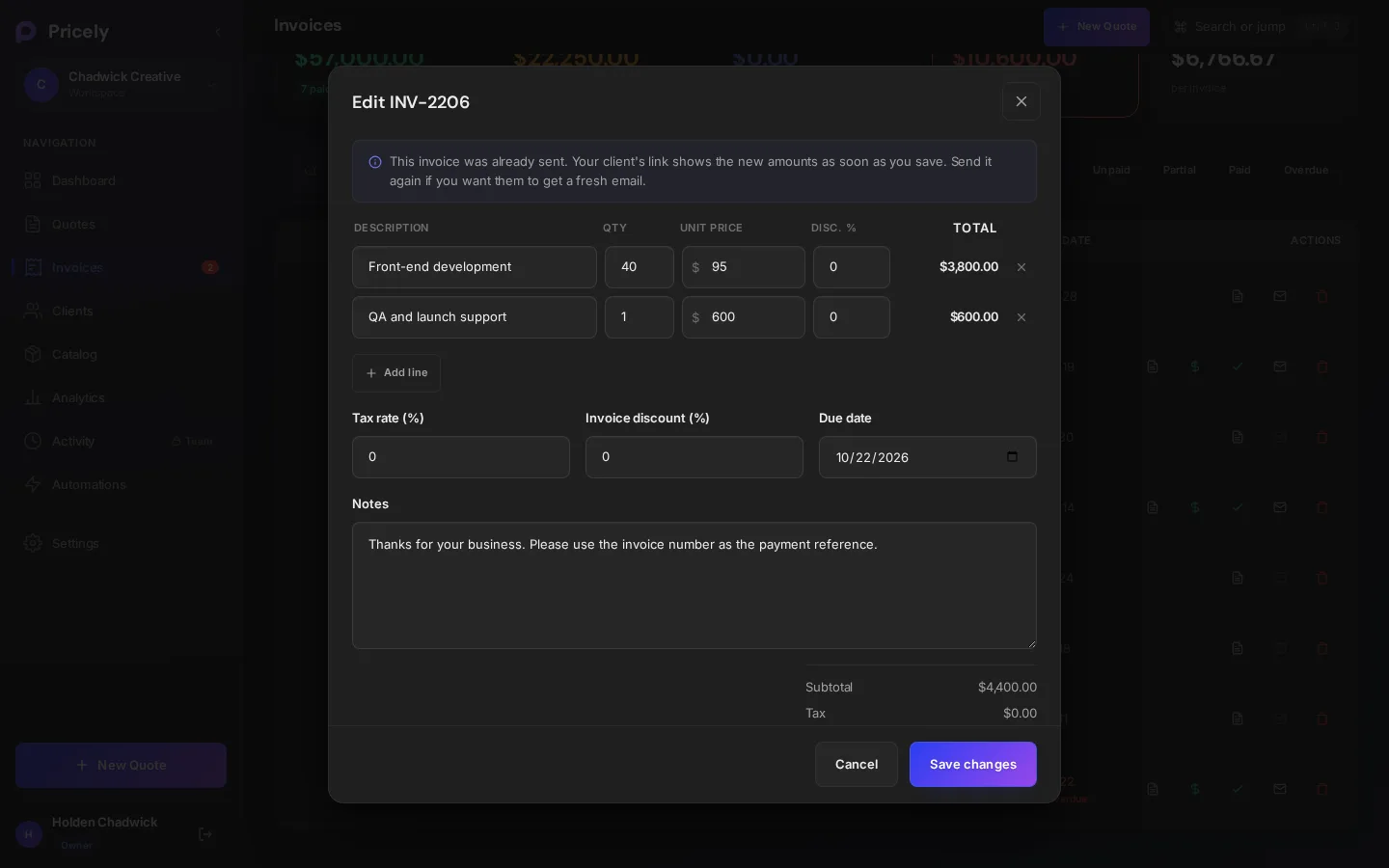
- Open the invoice
Click the invoice in the list, then click Edit invoice.
- Make your changes
The Edit INV-0042 window shows each line's description, quantity, unit price and discount, with a running total. Add lines with Add line or remove ones you don't need, and change the tax rate, invoice discount, due date or notes.
- Save
Click Save changes. Pricely confirms with INV-0042 updated.
| You can change | Notes |
|---|---|
| Line items | Description, quantity, unit price and line discount (%). Lines from tax-exempt catalog items stay tax exempt. |
| Tax rate (%) | One rate for the whole invoice. |
| Invoice discount (%) | A percentage off the whole invoice. If the invoice has a fixed-amount discount, this field is locked and the discount is kept as it is. |
| Due date | Moving it later on an overdue invoice puts it back to Sent, and it can be flagged overdue again from the new date. |
| Notes | Shown on the invoice. |
- Already sent? Pricely notes This invoice was already sent. Your client's link shows the new amounts as soon as you save. Send it again if you want them to get a fresh email. Nothing is emailed when you save.
- Totals are recalculated with the same rules as the quote builder, in the invoice's currency. Saving needs at least one line item (Add at least one line item) and a total above zero (The invoice total must be more than zero).
- The change is logged. The activity log records the change with the new total, for example Edited invoice INV-0042 — $1,250.00.
When you can't edit
Edit invoice only appears when the invoice can still be changed. To keep your records accurate, amounts are locked once money has moved:
| Invoice | What to do instead |
|---|---|
| Paid | Issue a credit note. |
| Partial or any invoice with a recorded payment | Issue a credit note for the difference. |
| An invoice with a credit note | Issue another credit note if needed. |
| Void | The invoice is closed. Create a new one. |
Send an invoice and follow up
Send invoice emails your client from Your Company via Pricely with a View & Pay Invoice link. The first send moves the invoice from Draft to Sent. Sending again from the envelope icon in the list sends a payment reminder instead. To automate follow-ups, turn on reminders.
What your client sees
The link opens a secure page with your business details, line items, totals and the balance due. Clients can Save PDF from the page. Overdue invoices show how many days late they are; paid invoices show a Paid badge.
Under How to Pay the client sees, depending on your setup:
- Pay with Card, for the balance due, when Stripe is connected.
- Bank transfer details, or your own payment instructions, when you've added them. The page asks the client to use the invoice number as the payment reference.
Export and bulk actions
Export CSV downloads the invoice list. Select invoices with the checkboxes to Mark All Paid or delete several at once.