Branding
Put your logo, brand color, font and footer on every quote and invoice your clients see.
Branding makes the documents your clients see look like yours. Your logo, brand color, font and footer appear on quotes and invoices: in the PDF, on the secure links your clients open, and in the emails that deliver them.
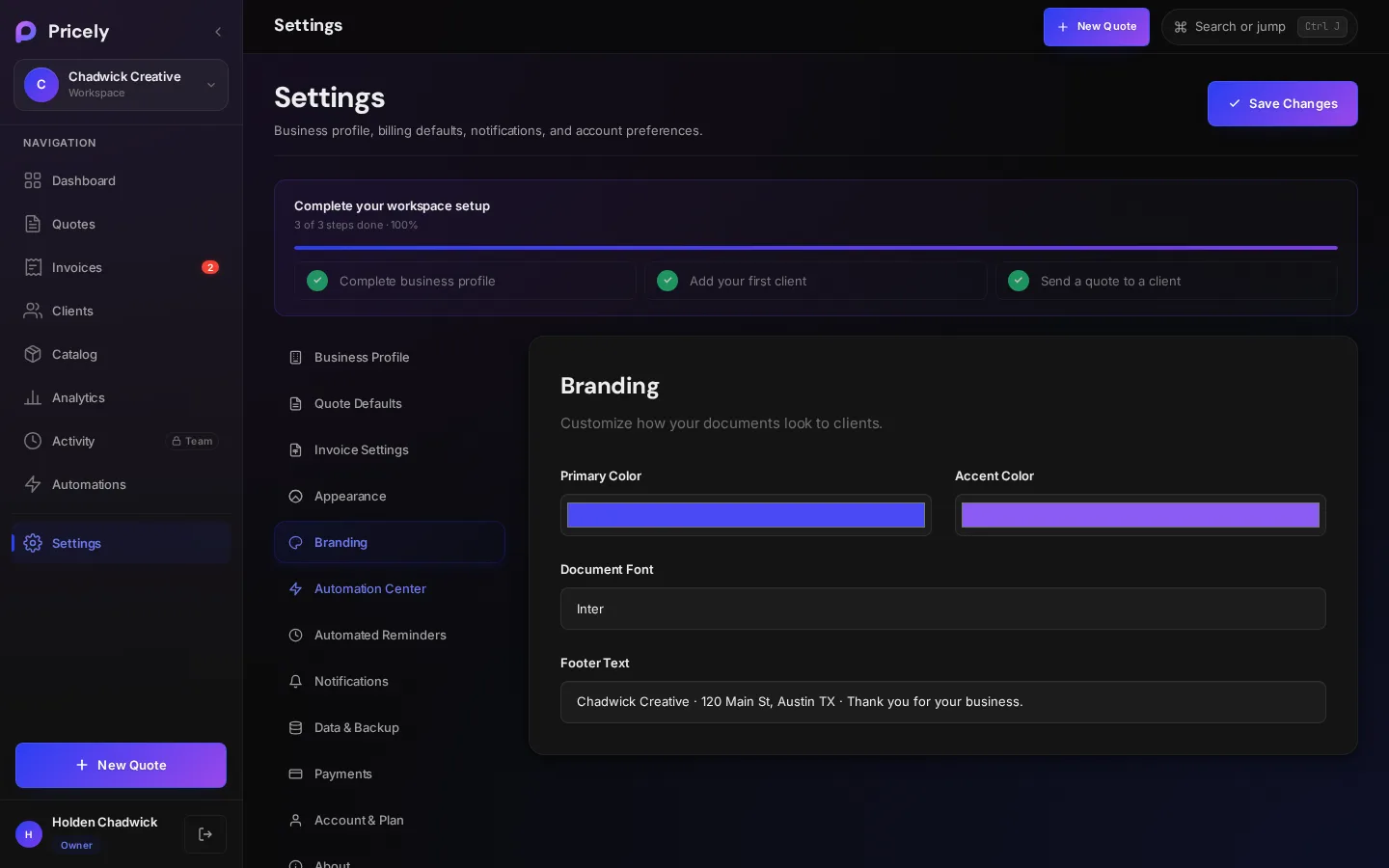
Where to set it
| Place | Fields |
|---|---|
| Workspace settings›Branding | Company Logo, Brand Color, Document Font, Default Currency and Invoice / Quote Footer Text |
| Settings›Branding | Primary Color, Accent Color, Document Font and Footer Text |
Both places edit the same brand details. Brand Color in workspace settings and Primary Color in Settings are the same setting, so a change in one shows in the other.
Where your branding appears
| Element | Client link | ||
|---|---|---|---|
| Logo | ✓ | ✓ | — |
| Brand color | ✓ | ✓ | ✓ |
| Document font | — | ✓ | — |
| Footer text | ✓ | ✓ | ✓ |
- PDF. The logo sits at the top, the brand color tints the line-item header and the document badge, and your footer text replaces the company name at the bottom of every page, next to the page number. PDFs always use the Roboto typeface, so they look the same on every device.
- Client link. The quote or invoice page your client opens uses your brand color for the badge and dividers, your chosen font for the whole document, and your footer text above Sent via Pricely. The same view appears when you open a document in the app.
- Email. Quote and invoice emails use your brand color for the header band, the amount and the button, and add your footer text at the end.
Add your logo
- Open workspace settings
Click your workspace name in the sidebar.
- Upload
In Branding, click Upload Image. Use a PNG or JPG up to 2 MB; 400 × 400 px works well.
- Save
Click Save Changes. To take it off, click Remove Logo.
Your logo appears at the top of your quotes and invoices, including the copies your clients open, and next to your workspace name in the sidebar.
Getting the logo right
- Transparency is kept. Logos are saved as PNG, so a transparent background stays transparent. On documents the logo sits on a small white plate, so a dark logo stays visible even when the page is viewed in a dark theme.
- Size. Pricely scales the image to fit within 400 × 400 px when you upload it. On the client link it's shown up to 180 px wide and 52 px tall, and in the PDF up to 160 × 56 points, so a wide, short logo reads best.
- Very large files. If a big, fully opaque image is still too large after scaling, it's saved as a JPEG instead. A large transparent image is scaled down further rather than losing its transparency.
- Preview first. The new logo shows in the settings preview straight away. Nothing changes on your documents until you click Save Changes.
Brand details
- Primary Color / Brand Color
- Your main brand color, as a hex value. Used on documents and emails.#4a4af6
- Accent Color
- A secondary color, saved with your brand details. Documents use the primary color.#8b5cf6
- Document Font
- Inter, DM Sans, Helvetica, Arial, Georgia or Times New Roman. Applies to the client link; PDFs use Roboto.
- Footer Text
- A short line such as “© 2026 Your Company. All rights reserved.” or your registration details, up to 300 characters.
Troubleshooting
| Problem | Try this |
|---|---|
| The documents still use the default purple | Branding is saved only on Pro and above, and only after you click Save Changes. Reopen the document after saving. |
| The font didn't change in the PDF | Expected. PDFs always use Roboto; your font applies to the client link. |
| The logo looks tiny | Crop away empty space around it before uploading, since documents show it at most about 52 px tall. |
| My light color looks darker on documents | Very light colors are darkened for text so it stays readable on white. |
| You can't change anything | Only Owners and Admins can edit workspace settings. See Team and roles. |
On the Free plan
Branding shows a Pro badge. You can see the fields, but changes aren't saved until you upgrade. Anything saved earlier is kept if you change plans.