Settings
Everything that shapes your quotes, invoices and workspace lives in Settings. Here's what each section does.
Open Settings from the sidebar, or press Ctrl K and type “settings”. Change what you need and click Save Changes; Pricely confirms with All settings saved!
Sections at a glance
| Section | What it controls |
|---|---|
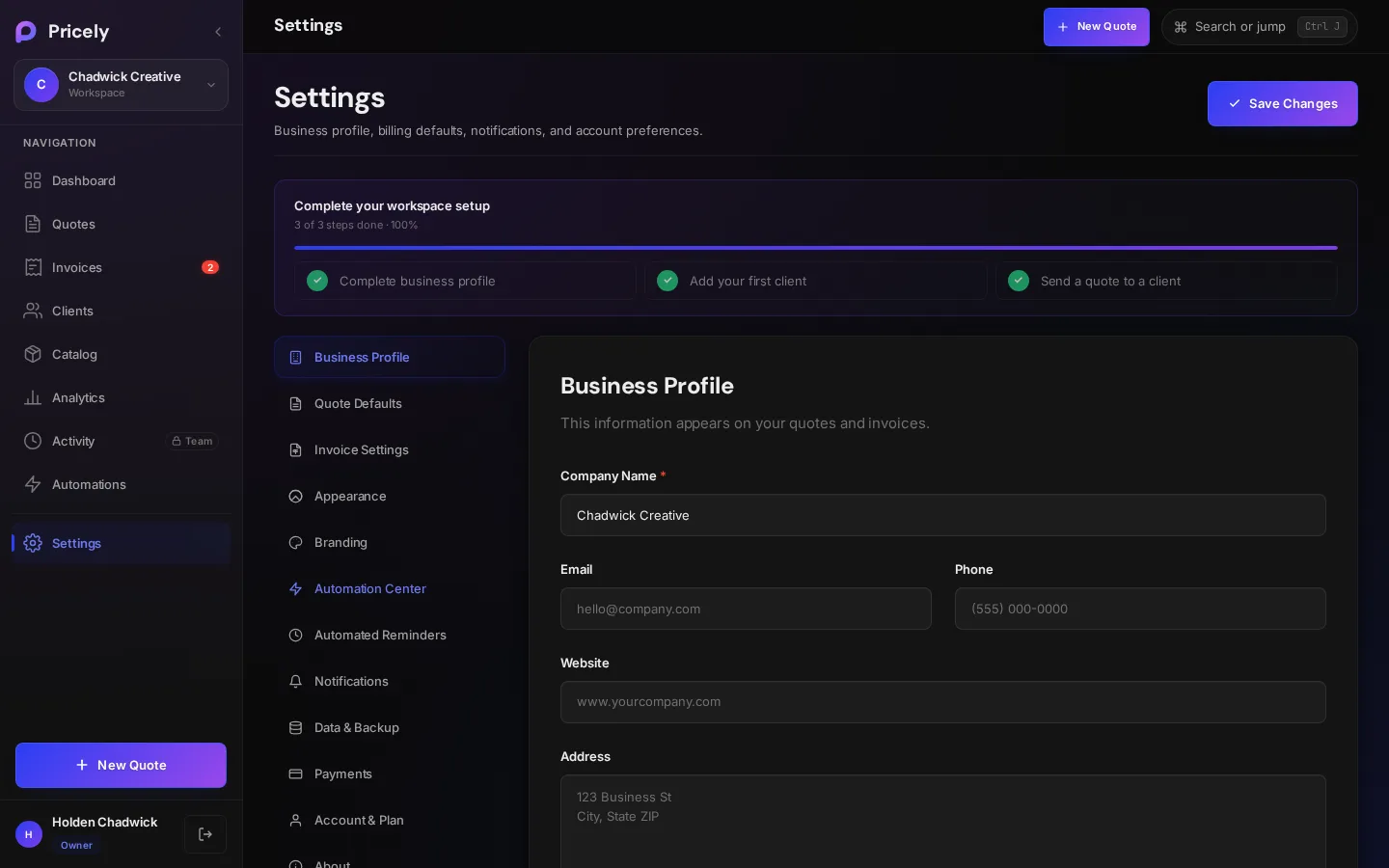
| Business Profile | The company details printed on your quotes and invoices. |
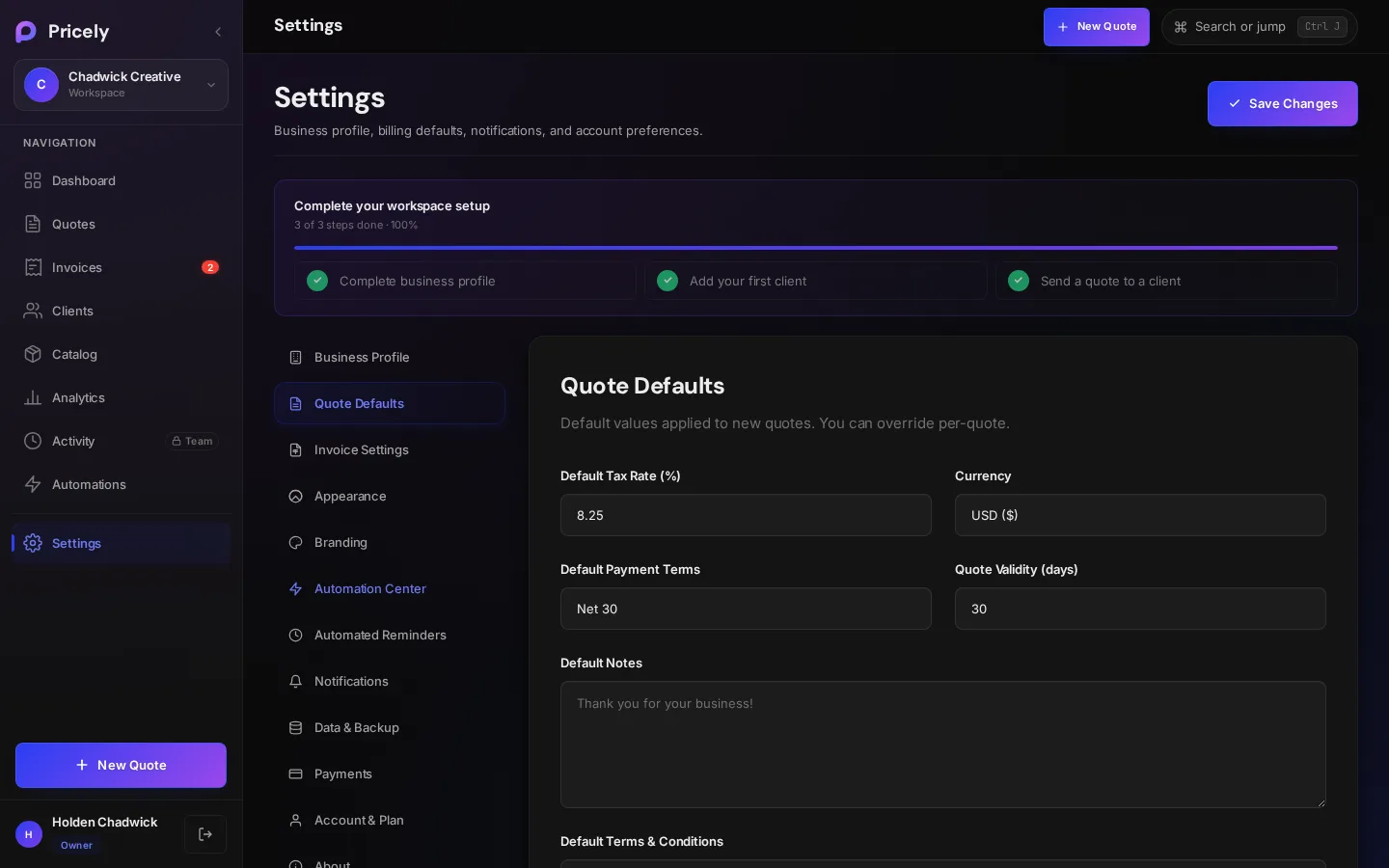
| Quote Defaults | Tax rate, currency, payment terms, validity, notes and terms for new quotes. |
| Invoice Settings | Invoice prefix and next number, late payment fee and payment instructions. |
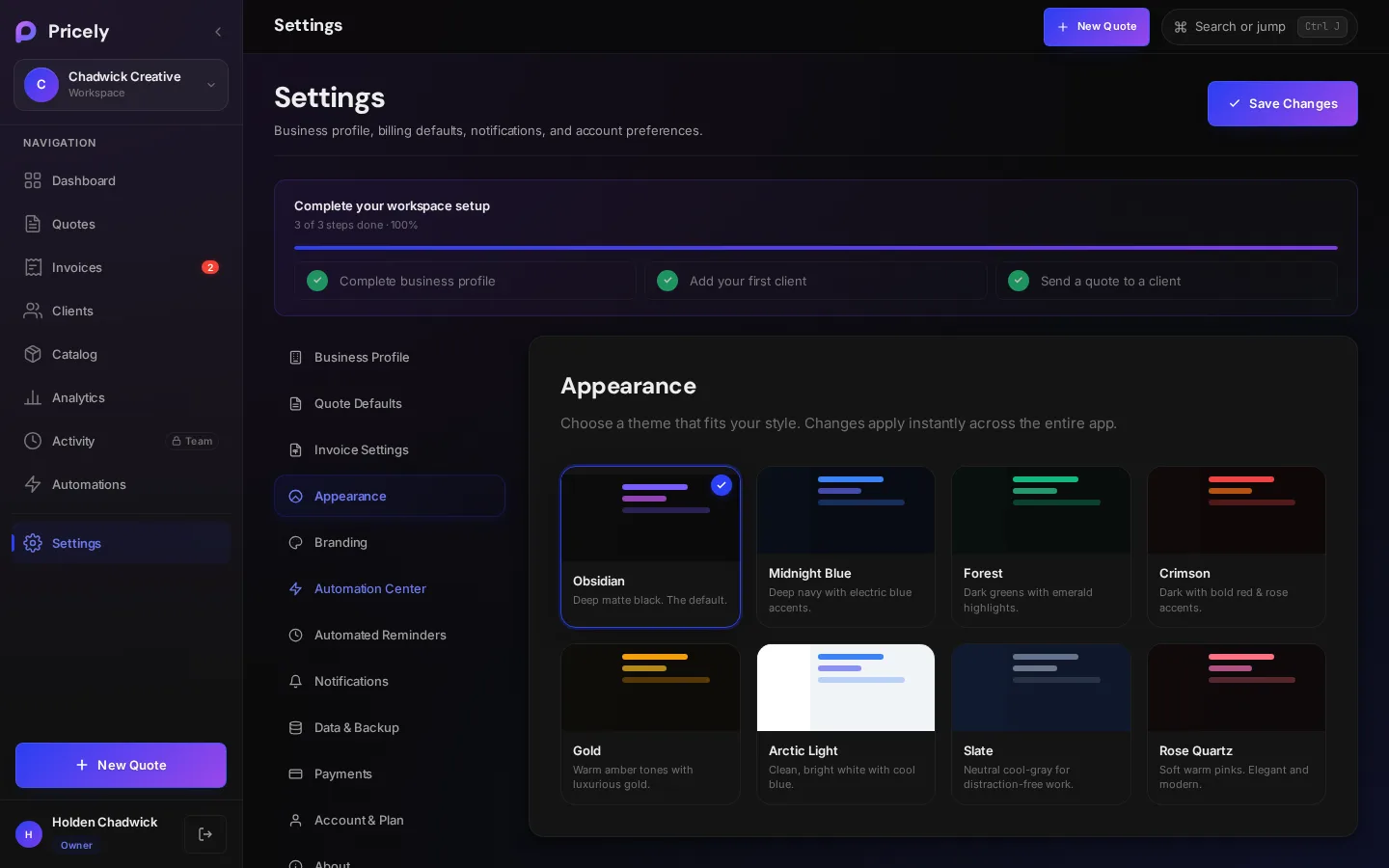
| Appearance | The app's color theme. |
| Branding Pro | The brand color, font and footer text used on your quotes, invoices and client emails. |
| Automated Reminders | Which reminder emails go to clients. See Reminders and late fees. |
| Notifications | Which emails Pricely sends you when clients act, payments arrive or invoices go overdue. |
| Data & Backup | Download or restore a JSON backup, or clear all data. |
| Payment Collection Pro | Bank details and Stripe card payments. |
| Account & Subscription | Your plan, billing, password and account deletion. |
| About Pricely | App version and support links. |
Business Profile
- Company Name
- Your trading name, shown at the top of documents.
- Where clients can reach you.
- Phone
- Website
- Address
- Your business address.
- Tax ID / VAT Number
- Printed on documents where required.
Quote Defaults
These values fill in each new quote. You can still change them on any quote.
- Default Tax Rate (%)
- Applied to new quotes.
- Currency
- The currency new quotes start in. See Languages and currencies.
- Default Payment Terms
- Due on Receipt, Net 15, Net 30, Net 45, Net 60 or Net 90.Net 30
- Quote Validity (days)
- How long a quote stays open before it expires.30
- Default Notes
- A note added to every quote, such as “Thank you for your business!”
- Default Terms & Conditions
- Your standard terms.
Invoice Settings
- Invoice Prefix
- The text in front of every invoice number, up to 24 characters.INV-
- Next Invoice Number
- The number your next invoice gets. You can move it forward, never back.
- Late Payment Fee
- A percentage per month or a flat fee. See late fees.
- Payment Instructions
- Free-text instructions shown on invoices, on every plan. See Bank transfers.
Invoice numbers
Invoices are numbered in order with a four-digit number after the prefix: INV-0001, INV-0002 and so on. Under the two fields, Pricely previews the result as you type: Your next invoice will be numbered INV-1001.
- Prefix. If you type
INV, Pricely adds the dash for you and numbers invoicesINV-0001. A prefix that already ends in-,/,_,.or#is used exactly as typed, so2026/gives2026/0001. - Next number. Use it to continue from your old system, for example set
1001if your last invoice elsewhere was 1000. Numbers only move forward, so a number that was already issued is never reused. - Every invoice uses it. New invoices, invoices converted from quotes and recurring invoices all take the next number in the same sequence.
- Existing invoices keep their numbers. Changing the prefix only affects invoices created afterwards.
Quotes are numbered QT-0001, QT-0002 and credit notes CN-0001, CN-0002, each in their own sequence.
Appearance
Pick a theme. It applies instantly across the app and only changes how Pricely looks to you, not your documents.
| Theme | Look |
|---|---|
| Obsidian | Deep matte black. The default. |
| Midnight Blue | Deep navy with electric blue accents. |
| Forest | Dark greens with emerald highlights. |
| Crimson | Dark with bold red and rose accents. |
| Gold | Warm amber tones. |
| Arctic Light | Clean, bright white with cool blue. |
| Slate | Neutral cool gray. |
| Rose Quartz | Soft warm pinks. |
Notifications
Pricely can email you when something happens in your workspace. Each email has its own switch, and every switch starts on. Turn off the ones you don't want and click Save Changes.
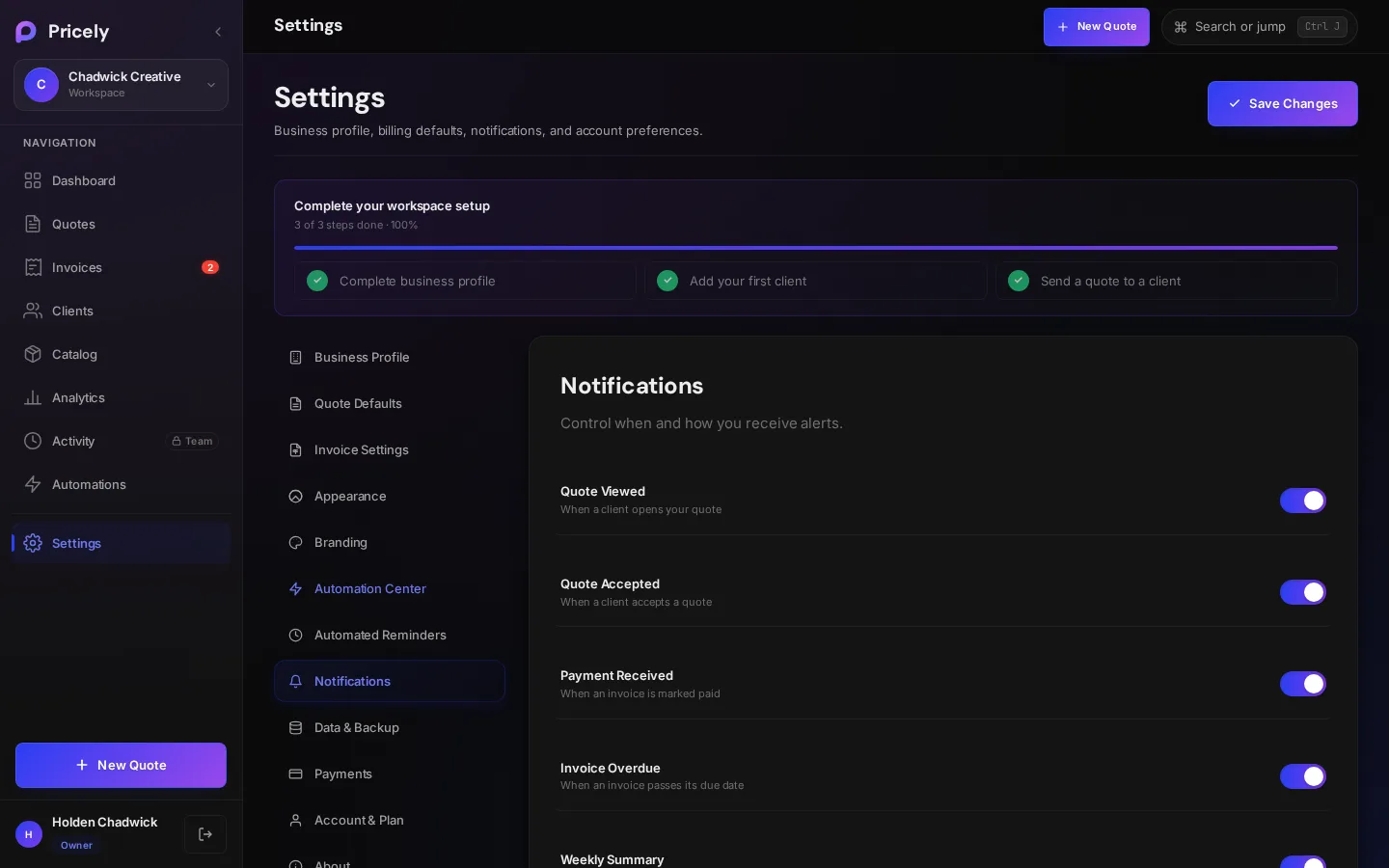
| Notification | You get an email when… |
|---|---|
| Quote Viewed | A client opens a quote you sent, the first time it moves from Sent to Viewed. |
| Quote Accepted | A quote is accepted, whether the client signs it or you accept it on their behalf. |
| Payment Received | An invoice is paid in full, by card through Stripe or by a payment you record. |
| Invoice Overdue | An unpaid invoice passes its due date. Sent once per invoice, the morning after it falls due. |
| Weekly Summary | Every Monday: the last seven days' collected amount, invoices created, quotes sent and accepted, what's outstanding and how many invoices are overdue. Skipped when nothing happened that week. |
Notification emails go to the business email in your Business Profile, or to the workspace owner's sign-in email if that's blank. They come from Notifications via Pricely, and each one links back to the quote, invoice or dashboard in Pricely.
Data & Backup
See how many quotes, invoices, clients and activity entries you have, and when you last made a backup.
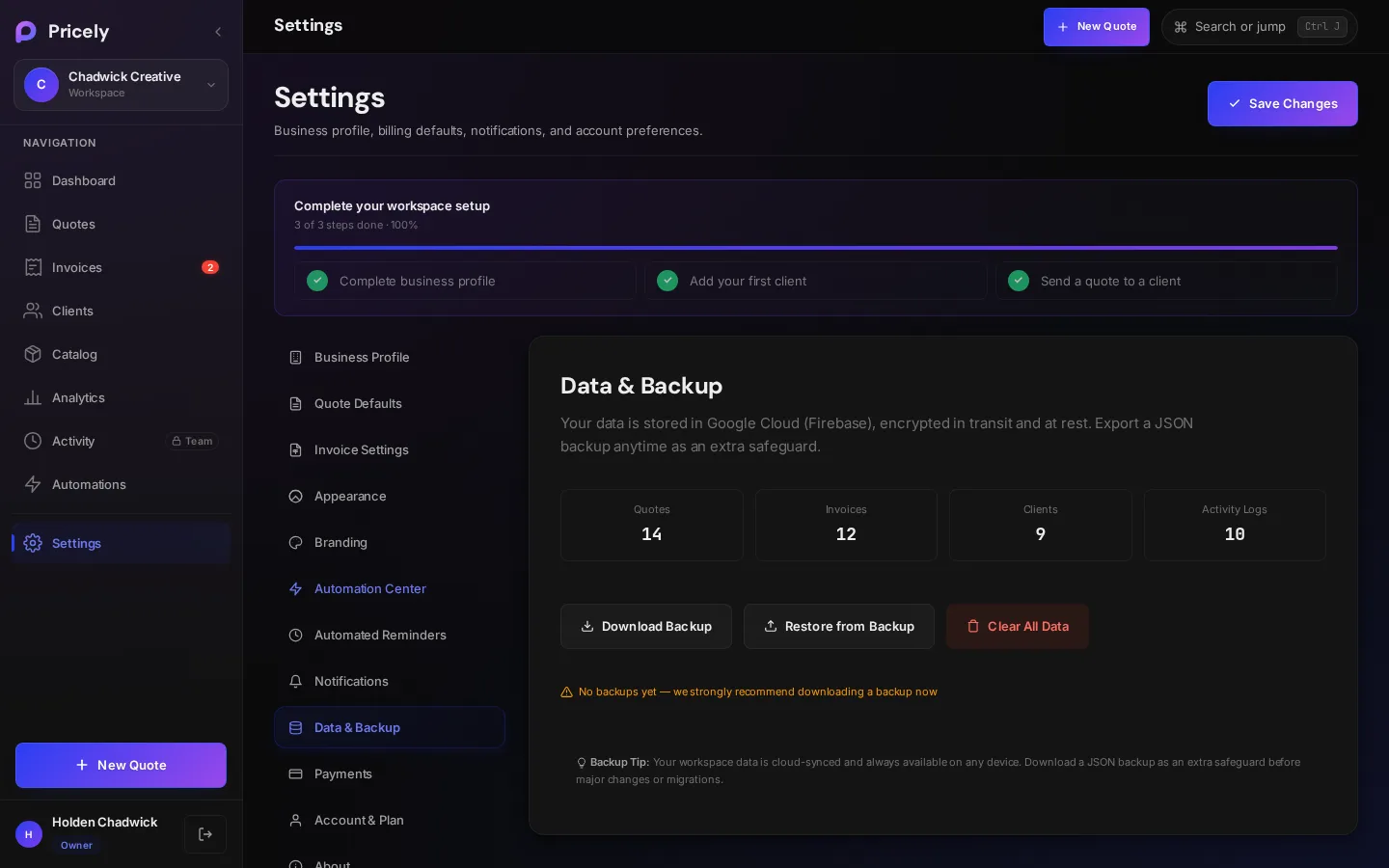
| Action | What it does |
|---|---|
| Download Backup | Downloads all your data as one JSON file. |
| Restore from Backup | Loads a JSON backup you downloaded earlier. |
| Clear All Data | Permanently deletes your quotes, invoices, clients and settings after you confirm. This can't be undone. |
Account & Subscription
- Subscription: your current plan, billing cycle and renewal date, with Manage Subscription and Update Payment. See Plans and billing.
- Account Actions: Change Password and Log Out.
- Danger zone: Delete account. See Delete your account.